
Assign, close and archive WhatsApp chats
Quick answer
Open the chat and use the Assigned to menu in its header to give it to yourself, a teammate or your AI assistant. The button next to the AI Assistant switch holds the Quick Actions: Reviewed, Resolved, Close, Archive and Unarchive.
A customer has been messaging about a 60-person buffet for her company's Hari Raya open house. Your assistant has answered the menu questions, but the pricing needs your events manager, who is off until 2pm. You want the chat in her hands with a note, the bot kept out of it, and the rest of the morning's finished chats cleared out of the way.
Chat management is everything you do to a conversation apart from replying to it. You decide who owns it, whether your AI assistant keeps answering, and where it sits in your inbox, so every customer ends up with the right person and nothing finished clutters the list.
With chat management you can:
- Hand a chat to yourself, a teammate or your AI assistant, with a note for whoever picks it up.
- Switch the AI assistant off for one customer while a person takes over.
- Clear the red and yellow dots once you have dealt with them, and close or archive a chat you have finished.
- Close, archive, mark as read or label many chats at once.
- See what a customer is still waiting on, and which Facebook or Instagram ad brought them in.
Before you start
- Your WhatsApp Business account is connected.
- You are signed in with an account that can reply to chats.
Assign a chat
- Open the chat. Assigned to: in the header shows who has it now.
- Select the name to open the list. Search by agent name or email if your team is large.
- Choose one:
- Assign to Me takes the chat yourself, straight away.
- AI Assistant hands the chat back to your assistant and switches it back on.
- A teammate's name opens Assign Chat.
- For a teammate, add anything they need to know in Notes, such as "60 pax, Hari Raya open house, wants a quote by Friday". Notes are optional and up to 500 characters.
- Select Confirm.
Only active team members can be picked. Invited members who have not joined yet show their status instead. When your events manager opens her chats at 2pm, the buffet enquiry is under Mine with your note attached.
When your assistant hands a chat over on its own, HeyBirdy picks the agent for you: whoever already has the chat, or the least busy agent on shift in your Agent Assignment schedule.

Turn the AI assistant off for one chat
The purple switch with the robot in the chat header is the AI Assistant switch for this customer only. Your other chats are not affected.
- On: your assistant replies to this customer's messages automatically. If it meets a question it cannot answer, it alerts your team.
- Off: your assistant stays quiet in this chat, and your team handles every message by hand.
Switch it off when a conversation needs a person from start to finish, like a complaint or a large booking. You see AI Assistant is now disabled to confirm.
When the 24-hour customer service window has passed, or the chat is closed, the switch and the Assigned to menu are locked and your assistant stays on, so a customer who writes back later still gets an answer.
Clear, close or archive a chat
The button next to the AI Assistant switch holds your Quick Actions. It shows the action you are most likely to want, and the arrow beside it opens the rest. You only see the actions that make sense for this chat right now.
| Action | What it does |
|---|---|
| Reviewed | Dismisses all unanswered questions and clears the yellow dot. |
| Resolved | Clears all alerts and the red dot. Asks you to confirm with Resolve Alerts. |
| Close | Ends the session. The chat stays in your Inbox and moves to Closed Chats. Asks you to confirm with Close Chat. |
| Archive | Ends the session and moves the chat out of your Inbox. Asks you to confirm with Archive Chat. |
| Unarchive | Brings an archived chat back into your Inbox. |
When you resolve, close or archive, any pending chat alerts are closed off and HeyBirdy checks whether the customer got their answer, the same way as when you resolve a chat alert.
Manage many chats at once
At the end of a busy weekend, clear finished chats in one pass instead of one at a time.
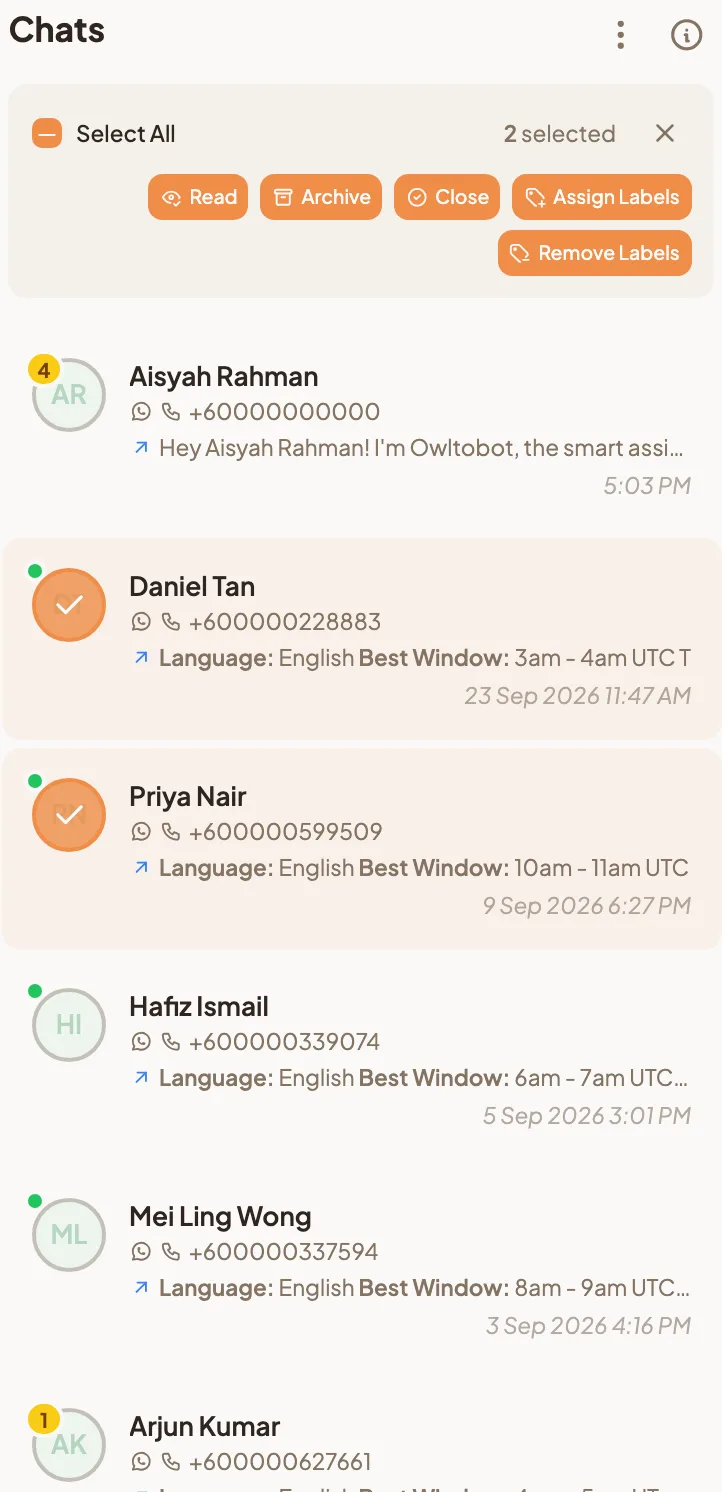
- In the chat lobby, select the menu (⋮) next to Chats and choose Select Chats.
- Each chat's picture becomes a round checkbox. Tick the chats you want, or tick Select All to select every chat loaded in the list.
- Choose an action:
- Read removes the unread badges.
- Close ends the messaging session.
- Archive ends the session and moves the chats out of your Inbox.
- Unarchive moves archived chats back to your Inbox. It appears when you are viewing Archived Chats.
- Assign Labels or Remove Labels changes the labels on every selected chat.
- Confirm in the dialog that opens.
- Leave select mode with the X, or press Esc.
The actions on offer follow the view you are in. Close is not shown in Closed Chats or Archived Chats, for example, because those chats are already closed.
Label a chat
Labels belong to the customer, so a label you add in a chat also shows on their contact and in campaigns. Select the person icon at the top right of the chat to open Contact Details, pick labels under Labels, then select Save. Change a contact's labels has the full steps, and Labels covers creating and colouring them.
See what this customer is still waiting on
When a chat has pending alerts or unanswered questions, a red round button with a number appears at the bottom right of the conversation. Its tooltip reads View Chat Alerts & Questions.
- Select the button. Chat Insights opens.
- Each item is marked Chat Alert or Unanswered Question.
- Select an item to jump to the message it came from.
Deal with them, then use Reviewed or Resolved from the Quick Actions. Once nothing is left waiting, the button goes away. To work through questions across all customers, see Unanswered Questions.
See which ad brought a customer in
When a customer taps a Facebook or Instagram ad or post that opens WhatsApp, their first message carries a Message via Ad or Message via Post card with a preview of what they saw.
- Select View Info on the card. Ad Information opens.
- Read the Source (Facebook or Instagram, ad or post), the Ad ID or Post ID, the Headline / Body and Clicked At.
- Select View Ad to open the ad itself, or Open in Ads Manager to see it in your ad account.
Now you know whether the customer asking about the buffet came from this month's Hari Raya ad or from last year's post, and you can tell your marketing team which one is working.
Tell your team's messages from automatic ones
Not every message in a chat was typed by your team. Your AI assistant answers from Instant Answers and the Knowledge Hub, and HeyBirdy sends Automated Messages at set moments, such as the Off-Hours Reply. HeyBirdy also adds notes for your team, such as an Assignment note when a chat changes hands and a Chat Summary. Notes have no reply menu, so you can tell them apart from real messages.