
Schedule which agents handle chats and when
Quick answer
Go to Manage Team Members, then Agent Assignment, and drag across the calendar to create a time slot, then pick the agents for it. Any hours without a slot are handled by the Default Agents set in Workspace Settings.
Mei Ling runs the morning shift from eight to three, and Farid takes over until closing at eleven. On Sundays it is only Farid. Yet the chat that came in at 9.40pm landed with Mei Ling, who had gone home six hours earlier.
Agent Assignment is a weekly calendar of who looks after customer chats and when. You draw a time slot, pick the agents on shift, and HeyBirdy passes chats that need a person to the agents on that slot. Hours you leave empty are covered by your Default Agents, so no chat is left without an owner.
With Agent Assignment you can:
- Match chat handling to your real shift rota, day by day.
- Put more than one agent on a busy slot, such as Friday dinner.
- Copy a slot to other days instead of drawing it again.
- Change or remove a slot when the rota changes.
Before you start
- You are signed in as an Admin.
- The people you want to schedule have activated their accounts. Only active members can be assigned; invited and blocked members do not appear.
- Your Default Agents are set, to cover any hours you do not schedule.
Open the schedule
- Go to Manage Team Members, then Agent Assignment.
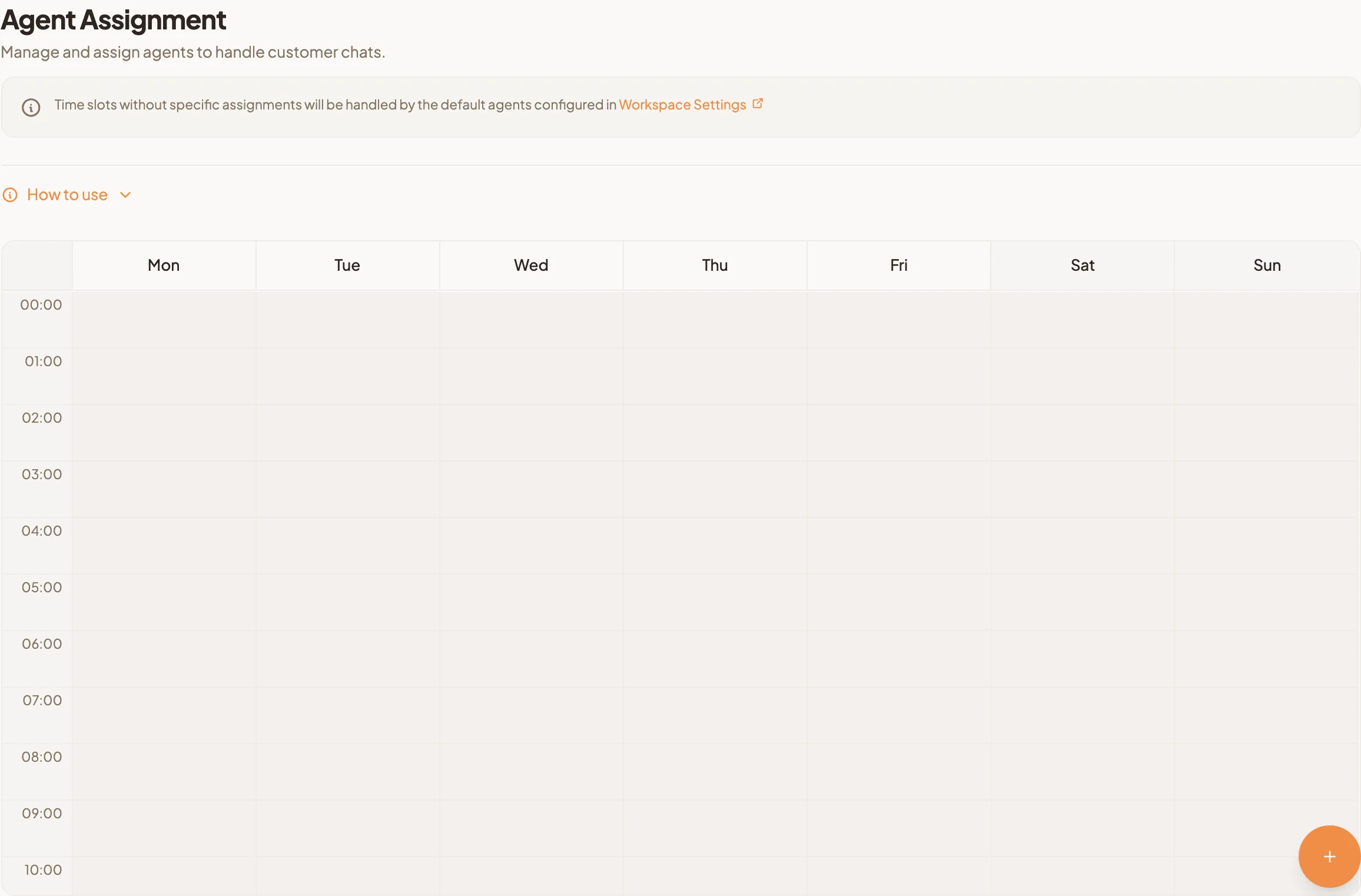
- The calendar shows the week from Monday to Sunday. Shaded hours are outside your working hours, set under Availability & Hours in Workspace Settings.
The calendar shows times in your own time zone, set in My Profile.
Create a time slot
On a computer:
- Click the start time on the day you want, and drag down to the end time.
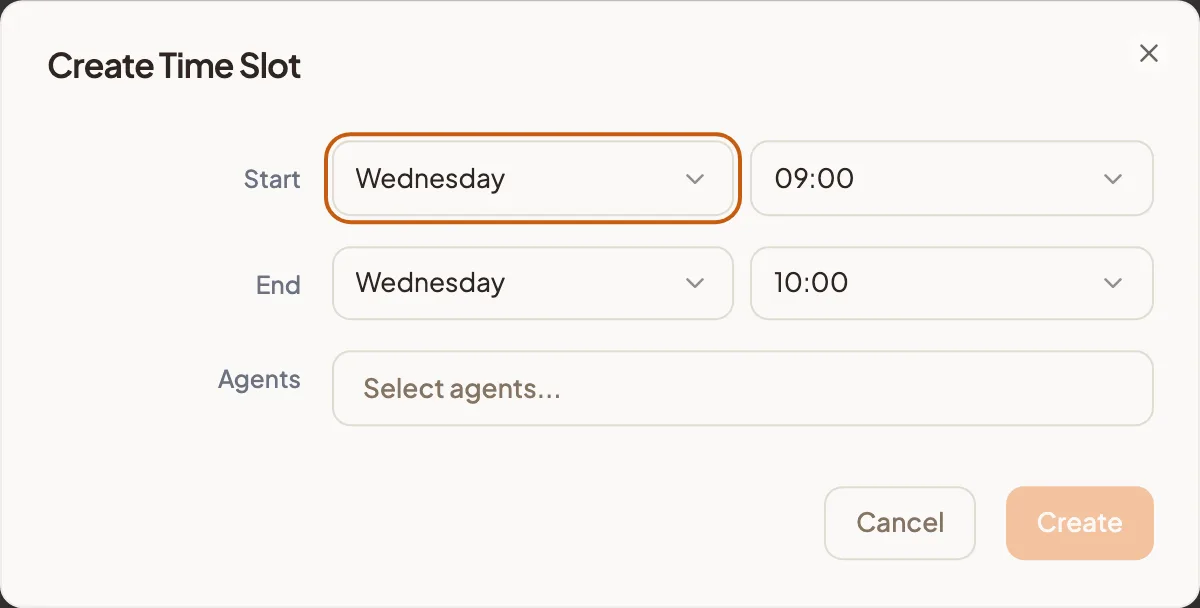
- Release. Create Time Slot opens with the day and times filled in.
On a phone or tablet:
- Press and hold the calendar at the start time.
- Drag to extend the time, then release. Create Time Slot opens.
Then, in Create Time Slot:
- Check Start and End. Each has a day and a time, in 15-minute steps. A slot can end on a later day, so a late shift can run past midnight.
- Under Agents, select one or more agents. Type in Search agents... to find someone.
- Select Create.
You can also select the round plus button at the bottom right of the page to open Create Time Slot for today, from 9.00am to 10.00am, and change the times from there.
Each day can hold up to 10 time slots.
Change who covers a slot
- Select the slot on the calendar. Edit Time Slot opens.
- Change the times, or add and remove agents under Agents.
- Select Update.
Copy a slot to other days
Drew Monday's lunch shift and want it on every weekday? Copy it.
- Select the slot on the calendar.
- In Edit Time Slot, select Copy.
- Copy Time Slot shows the slot's times and agents. Under Copy to:, tick the days you want.
- Check the preview of the copied slots.
- Select the button that confirms the copy. It shows how many days you picked, for example Copy to 4 day(s).
The copies have the same times and agents as the original. Edit any of them afterwards on its own.
Delete a time slot
- Select the slot on the calendar.
- In Edit Time Slot, select Delete.
- Select Delete again to confirm.
Who handles chats when no slot is set
Any hour without a time slot is handled by the Default Agents you choose in Workspace Settings. The link at the top of the Agent Assignment page takes you there.
- Go to Settings, then Workspace Settings.
- Open the Default Agents tab.
- Choose your agents under Select Default Agents, and save.
Between your time slots and your Default Agents, every hour of the week has someone on it, and the 9.40pm chat goes to whoever is actually on shift.