
Change your password, name and time zone
Quick answer
Open My Profile from your initials in the top-right corner to change your name, phone number or time zone, then select Save Changes. To change your password, open Change Password on the same page; this signs you out of every device.
You manage the Penang outlet but you are in Kuala Lumpur for the week, and a teammate says the timestamps on your chats look an hour off. Or you shared your password with a relief cashier during a busy weekend, and now you want it changed before Monday.
My Profile is your own account page. Every team member has one, whatever their access level, and changes here affect only you. It keeps your details right and your account safe.
On this page you can:
- Change your name and phone number.
- Set the time zone you see times in.
- See which sign-in methods your account uses.
- Change your password.
Open My Profile
- Select your initials in the top-right corner.
- Select My Profile.
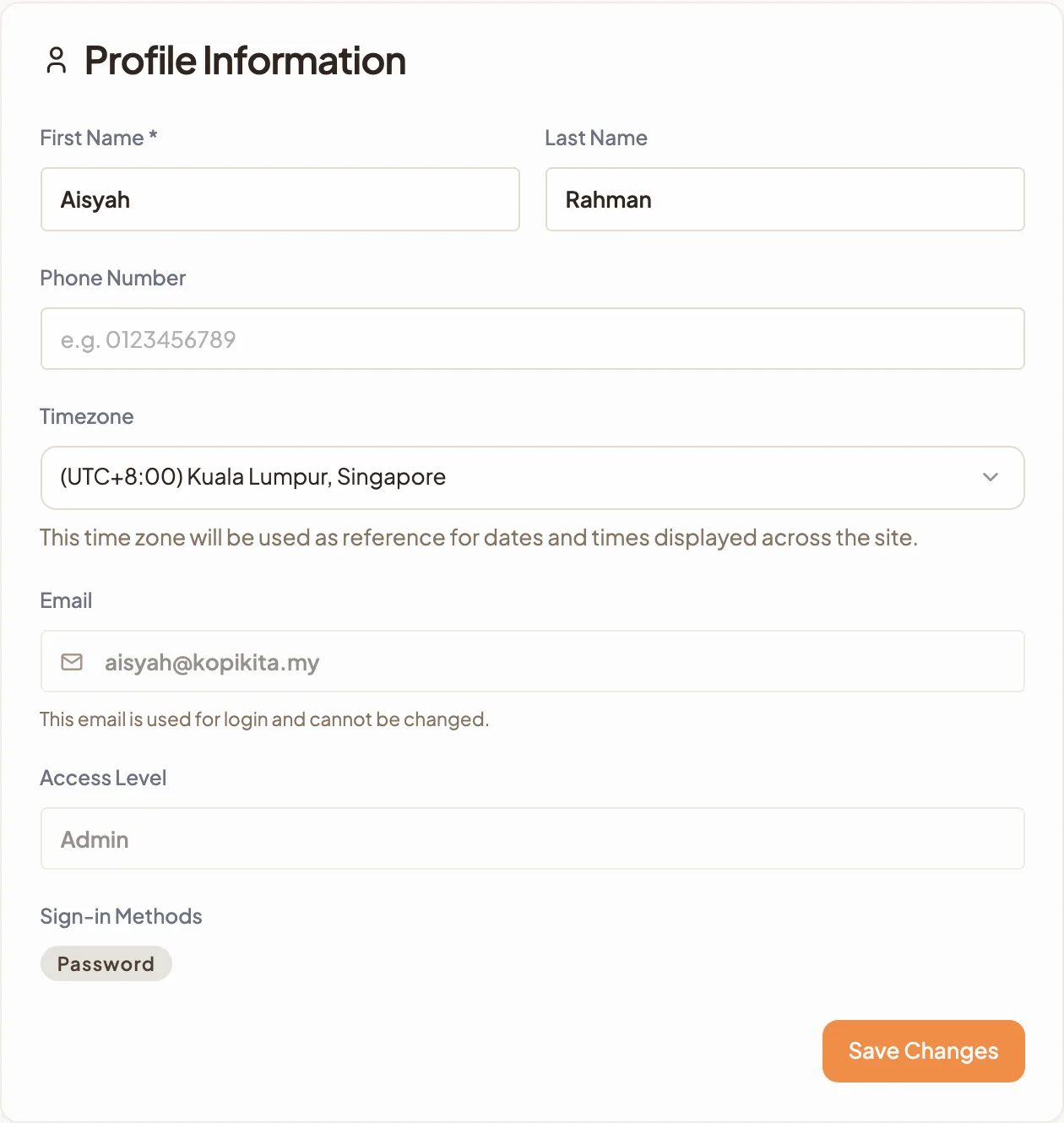
Change your name or phone number
- On My Profile, edit First Name, Last Name or Phone Number. First Name is required.
- Select Save Changes.
Your Email is what you sign in with, so it cannot be changed here. Your Access Level is set by your workspace Admin.
Change your time zone
Your time zone decides how you see times in HeyBirdy: in your chats, chat history and reports. It does not change your shop's hours or when customers receive off-hour messages. Those follow the workspace time zone, known as the Business Clock, which an Admin sets in Workspace Settings.
- On My Profile, choose your time zone under Timezone.
- Select Save Changes.
You can also get here from the top bar. Select the time zone button, which shows your offset from UTC, then select Change My Timezone. The same menu shows Your Selected Timezone beside the Workspace Timezone, and Learn more explains the difference.
See how you sign in
Sign-in Methods on your profile shows the ways your account can sign in: Password, Google or Facebook.
To sign in with Google or Facebook, select Continue with Google or Continue with Facebook on the sign-in page. It works with the Google or Facebook account that uses the same email address as your HeyBirdy account.
Change your password
- On My Profile, select Change Password to open that section.
- Enter your Current Password.
- Enter a New Password. It needs at least 8 characters, one uppercase letter, one number and one special character.
- Enter it again in Confirm New Password.
- Select Change Password.
- When you see Password Updated Successfully, select Continue to Login and sign in with your new password.
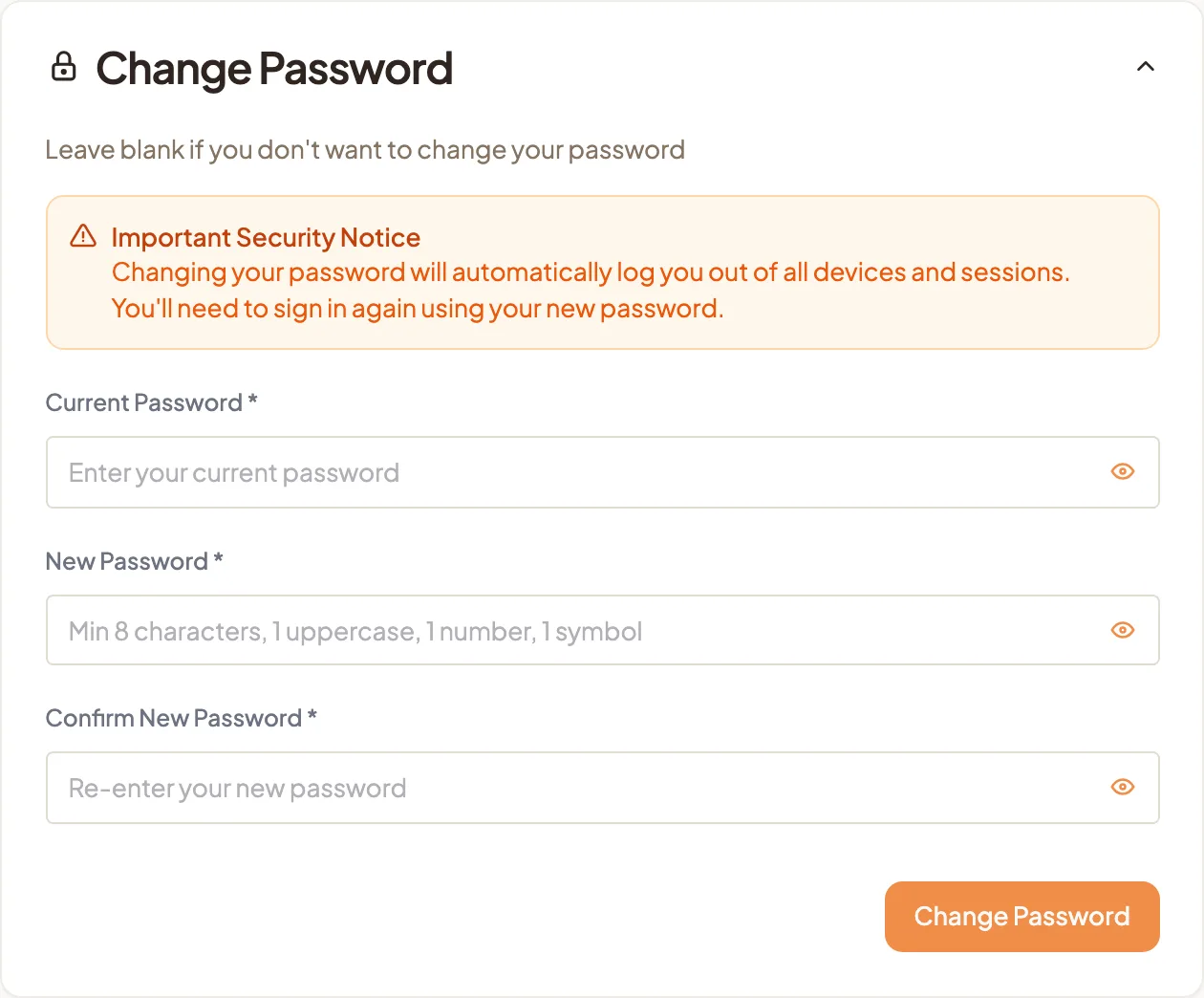
Forgot your current password? Log out, then select Forgot Password? on the sign-in page to get a reset link by email.
Report a problem to HeyBirdy
Something not working the way it should? Tell us directly from the portal.
- Select Something's Wrong? in the sidebar.
- Fill in the report form on that page and submit it.
The report goes straight to the HeyBirdy team. Everyone in your workspace can use it, Admins and Support Agents alike.