
Turn on notifications for new chats and chat alerts
Quick answer
Allow notifications when HeyBirdy asks, or select the red alert icon in the top bar to turn them on. Then open Notification Settings from your initials to choose In-App, Browser Push or Email for each type of event, and select Save Settings.
It is the lunch rush and your phone is face down beside the till. A customer has been waiting twenty minutes for someone to confirm her catering order for Saturday, and nobody knew the chat had come in.
Notifications tell you when a chat needs a person, so no customer waits because nobody looked. Each person chooses their own: on screen inside HeyBirdy, as a push notification from the browser, or by email when you have stepped away.
With notifications you can:
- Get a browser notification the moment a chat or chat alert is assigned to you.
- See everything that happened since you last looked, under the bell.
- Choose, for each type of event, how you want to hear about it.
- Get an email only when you have been away for a while, or a regular summary instead.
Turn on browser notifications
Browser notifications reach you even when HeyBirdy is in a background tab.
- When you sign in, HeyBirdy asks whether you want notifications. Select Enable Notifications.
- When your browser asks for permission, choose Allow.
Selected Not Now earlier? While notifications are off, a red alert icon shows in the top bar, with the tooltip Notification Settings. Select it to see the prompt again.
If you blocked notifications in the past, HeyBirdy cannot ask again. The icon opens a message explaining that notifications are blocked. Turn them back on in your browser's site settings for HeyBirdy, then reload the page.
Get notifications on iPhone or iPad
On iPhone and iPad, Safari only delivers notifications when HeyBirdy is opened as an app from your Home Screen.
- Open HeyBirdy in Safari.
- Tap the Share button.
- Select Add to Home Screen.
- Open HeyBirdy from the new icon on your Home Screen and sign in.
- Select Enable Notifications and allow them when asked.
Check the notification bell
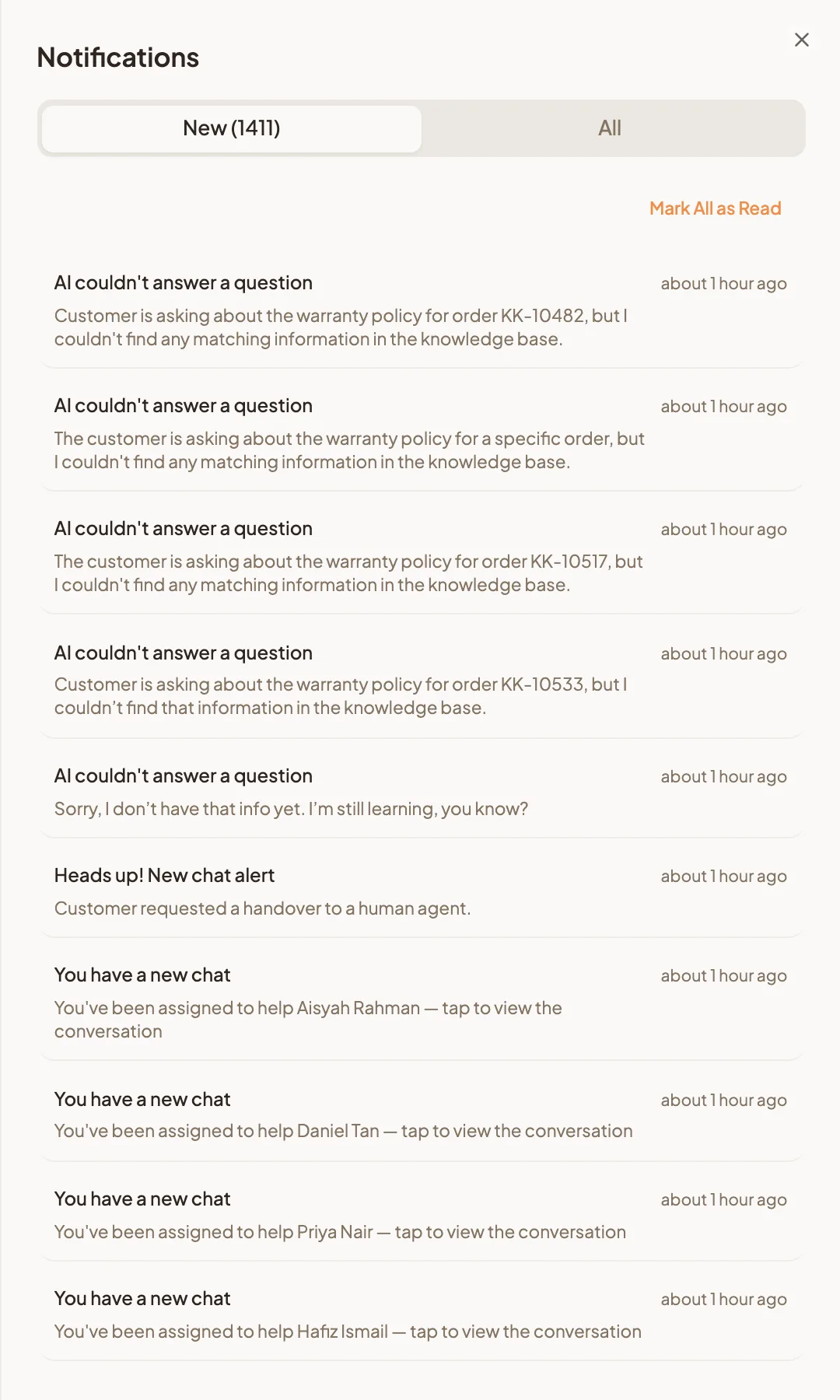
The bell in the top bar collects your in-app notifications. A red number on it shows how many you have not read.
- Select the bell. The Notifications panel opens.
- New shows what you have not read yet. All shows everything.
- Select a notification to open the chat or page it is about. It is marked as read.
- To clear the New list in one go, select Mark All as Read.
Choose how you are notified
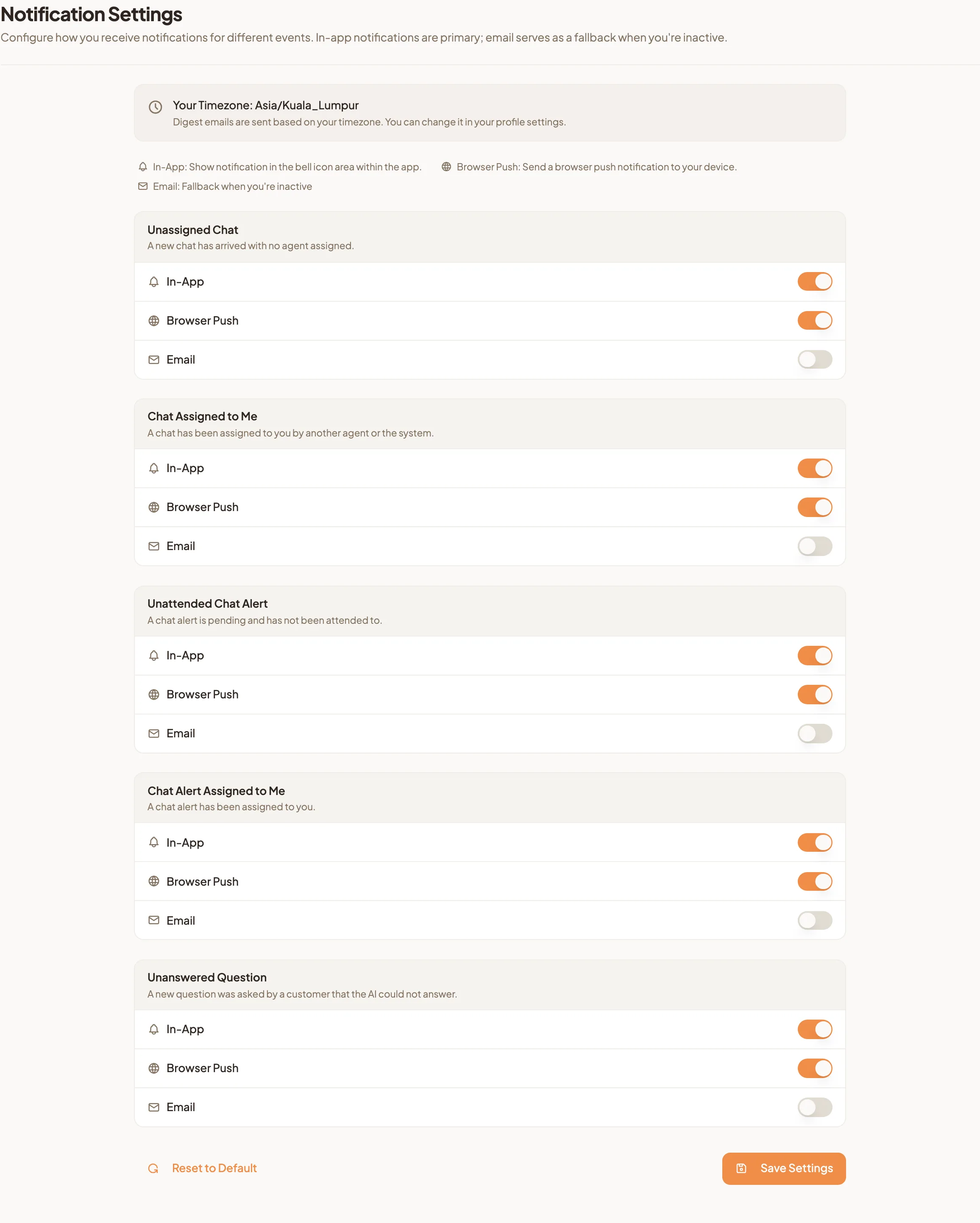
- Select your initials in the top-right corner, then Notification Settings.
- Find the event you want to change. There are five:
- Unassigned Chat: a new chat has arrived with no agent assigned.
- Chat Assigned to Me: a chat has been assigned to you.
- Unattended Chat Alert: a chat alert is pending and nobody has attended to it.
- Chat Alert Assigned to Me: a chat alert has been assigned to you.
- Unanswered Question: a customer asked something the AI could not answer.
- Turn each channel on or off: In-App (the bell), Browser Push (your device) and Email.
- Select Save Settings.
Get emails only when you are away
Email is a back-up for when you are not looking at HeyBirdy. When you turn Email on for an event, choose how it is sent under Email Delivery:
- Immediate sends an email for each event, but only after you have been inactive for the number of minutes in Inactive (min). You can set anything from 0 to 1440 minutes.
- Digest gathers events into one summary email. Choose Hourly, Daily, Weekly or Monthly under Digest Frequency.
Select Save Settings when you are done.
Digest emails are timed by your own time zone, shown at the top of the page. To change it, see My Profile.
Go back to the default settings
- Select Reset to Default.
- Select Save Settings to apply it.
By default, In-App is on for every event, Browser Push is on for everything except Unanswered Question, and Email is off.