
Invite staff and manage their access to HeyBirdy
Quick answer
Go to Manage Team Members, then Invite New Team Member, fill in their details, choose Admin or Support Agent and select Send Invitation. They get an activation email that is valid for 48 hours; you can resend or revoke it from All Team Members.
Aisyah starts on the front counter next Monday and will be answering WhatsApp orders on the afternoon shift. She needs to see the chats, but not your campaign budget, billing or the team list. And the part-timer who left last month still has a login.
Manage Team Members is where you decide who can use your HeyBirdy workspace and what each person can see. You invite people by email, choose their access level, and block access the day someone leaves.
With team members you can:
- Invite staff by email as an Admin or a Support Agent.
- Resend an invitation that has expired, or cancel one sent by mistake.
- Update a member's name, phone number, time zone or access level.
- Send a member a password reset email.
- Block someone from signing in, and unblock them later.
Before you start
- You are signed in as an Admin. Support Agents do not see Manage Team Members.
- You have the email address each person will sign in with.
Invite a team member
- Go to Manage Team Members, then Invite New Team Member. You can also select Invite Member on the All Team Members page.
- Enter a First Name, and a Last Name and Phone Number if you have them.
- Enter their Email. This is what they will sign in with, and it cannot be changed later.
- Choose an Access Level: Admin or Support Agent.
- Choose their Timezone. It sets how they see dates and times.
- Select Send Invitation.
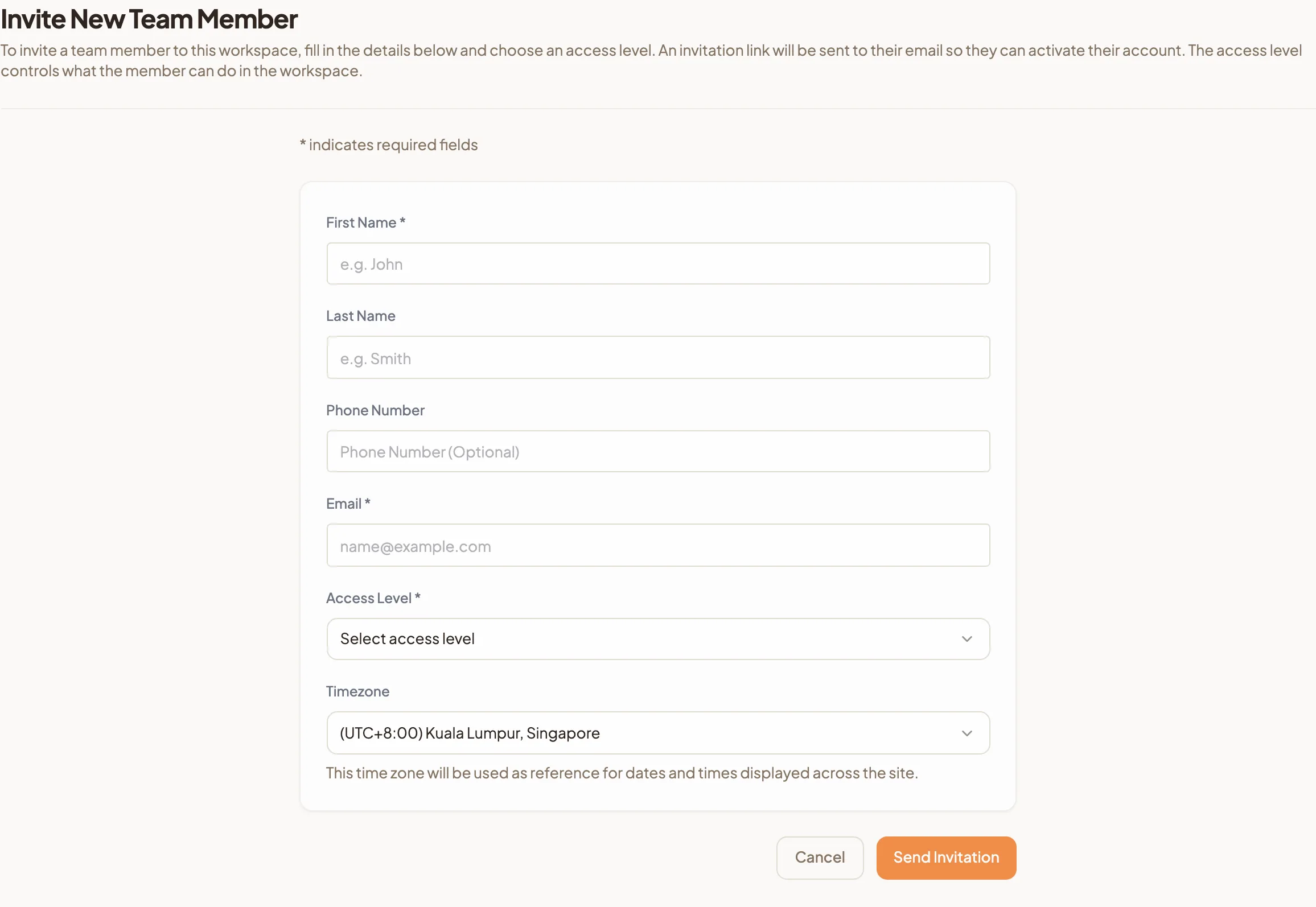
They receive an email with a link to activate their account and set a password. Until they do, they appear in All Team Members with the status Invited.
The link works for 48 hours. If they already use HeyBirdy for another workspace, opening the link adds your workspace to their existing account.
Resend or cancel an invitation
Invitations that have not been accepted show two links in the Actions column of All Team Members.
- Resend Invitation sends a fresh link. The previous link stops working, so tell them to use the newest email.
- Revoke Invitation cancels the invitation and removes them from the list. The link stops working, and you can invite the same email again later.
Admin or Support Agent: what each can see
Admin has full access to the workspace.
Support Agent is for people whose job is replying to customers. In the sidebar they see:
- Dashboard, Chat Alerts and Chats
- Contacts, including All Contacts and Labels
- Chat Analysis and Templates
- AI Management, with Instant Answers and Unanswered Questions only
- Something's Wrong?
Why a Support Agent cannot see Campaigns
These parts of HeyBirdy are for Admins only, and are hidden from Support Agents:
- Campaigns
- Reports
- Settings, including Workspace Settings, WhatsApp Business, Quick Responses, Automated Messages, Data Indexing, Billing and API Keys
- Manage Team Members, including Agent Assignment
- Knowledge Hub and AI Assistant Settings under AI Management
If someone needs one of these, give them the Admin access level.
Find a team member
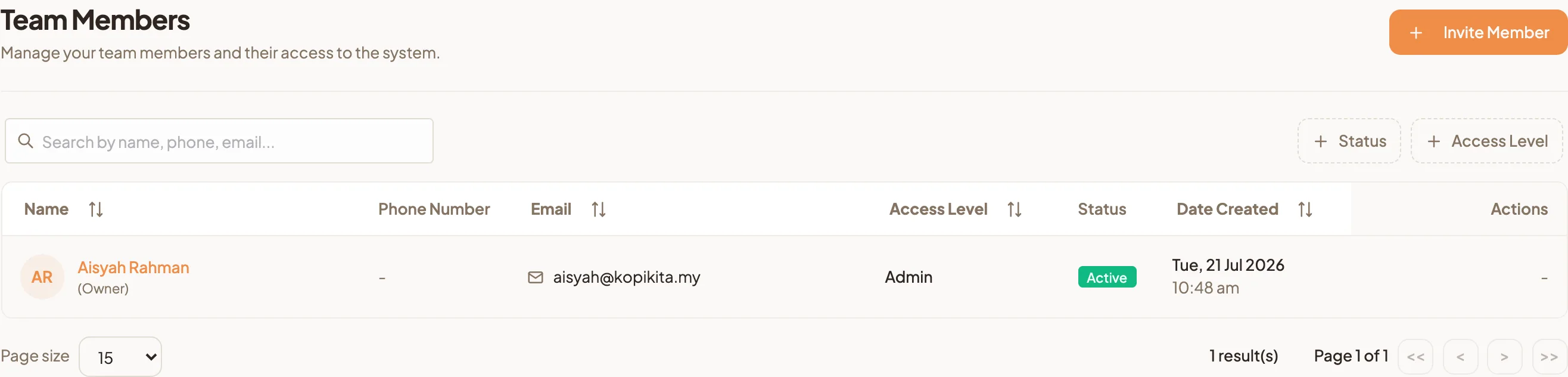
- Go to Manage Team Members, then All Team Members.
- Search by name, phone or email.
- To narrow the list, use Status (Active, Invited, Blocked or Deleted) and Access Level.
- Select Reset to clear the filters.
The workspace owner is marked (Owner) under their name.
Edit a team member's details
- In All Team Members, select the member's name.
- Change First Name, Last Name, Phone Number or Timezone.
- To change what they can see, choose a different Access Level.
- Select Save Profile.
A member's Email cannot be changed. You cannot change your own access level, or the owner's; only the owner can edit the owner's details. To change your own details, use My Profile.
Sign-in Methods shows whether the member signs in with a password, Google or Facebook.
Reset a member's password
Use this when someone is locked out or has forgotten their password. It is available once they have activated their account.
- Open the member from All Team Members.
- Select Advanced Settings.
- Under Reset Password, select Send Reset Email.
- Select Send Reset Email again to confirm.
They receive an email with a link to create a new password. You never see or set their password yourself.
Block a member's access
Block someone the day they leave, or while you look into a problem. They are stopped from signing in straight away, and they cannot access the workspace until you unblock them.
- Open the member from All Team Members.
- Select Advanced Settings.
- Under Block Member Access, select Block This Member.
- Enter a Block Reason, up to 100 characters.
- Select Block Member.
Their page now shows the block reason, who blocked them and when. You cannot block yourself or the workspace owner.
Unblock a member
- Open the member from All Team Members.
- Select Advanced Settings.
- Under Unblock Member Access, select Unblock This Member.
- Select Unblock Member.
HeyBirdy sends them a password reset email, so they set a new password before they sign in again.