
Find, filter and search your WhatsApp chats
Quick answer
Open Chats and use the All, Mine, Others and Bot tabs to choose whose chats you see, then the Show and Sort by menu to narrow them down. A red dot means a chat alert, yellow means an unanswered question, and green means a new message nobody has read.
It is Saturday lunch at the Bangsar branch and forty chats have come in since the doors opened. Somewhere in that list is the regular who wants to change her birthday cake pickup to 3pm, and one customer the assistant has already handed over to a person. You have two minutes between orders to find them both.
The chat lobby is the list of conversations on the left of Chats. It tells you at a glance which chats need a person, which ones your AI assistant is handling, and which ones are waiting to be read, so those two minutes go on the right customers.
With the chat lobby you can:
- See which chats need attention first, from the coloured dot on each one.
- Switch between every chat, your own chats, your teammates' chats and the ones your assistant is handling.
- Show active, closed or archived chats, and sort them by newest, oldest or importance.
- Narrow the list down to customers with a particular label, such as VIP or Catering enquiry.
- Search every contact and every message in your workspace, then jump straight to the message you found.
Before you start
- Your WhatsApp Business account is connected.
- You are signed in with an account that can reply to chats.
Read the red, yellow and green dots
Each chat in the list carries a dot on the customer's picture. Work from red to green.
| Dot | What it means |
|---|---|
| Red, with a number | Alert. Your AI assistant handed the customer to your team with a chat alert, and a person needs to reply. |
| Yellow, with a number | Pending Question. Your AI assistant spotted a question it could not answer. See Unanswered Questions. |
| Green | New Message. Recent unread activity that is not an alert or a question. |
The number on a red or yellow dot counts the alerts and questions waiting in that chat. A small number at the end of the row counts unread messages. Opening a chat marks it as read, and the green dot goes.
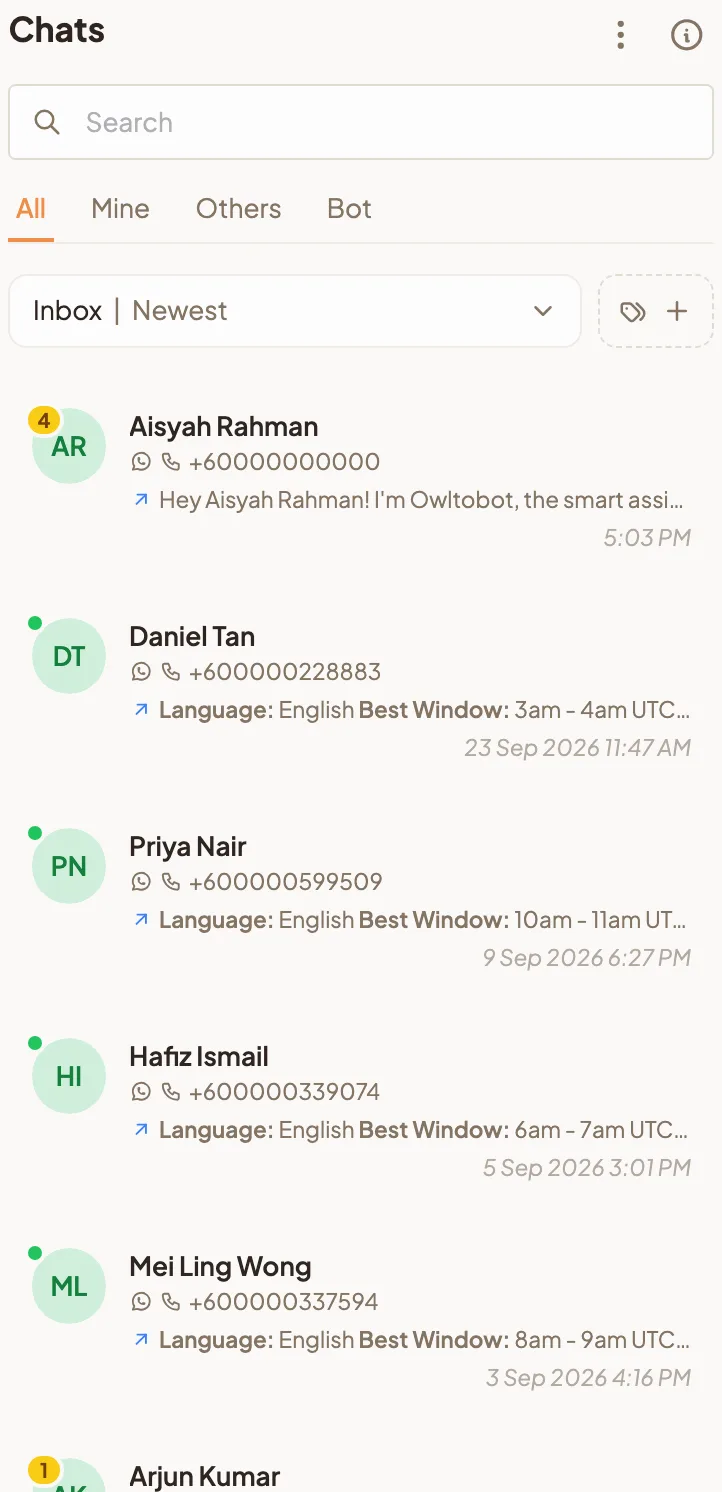
To clear green dots in one go, select the menu (⋮) next to Chats, choose Mark All as Read, then confirm. Every chat with new messages in your current view is marked as read.
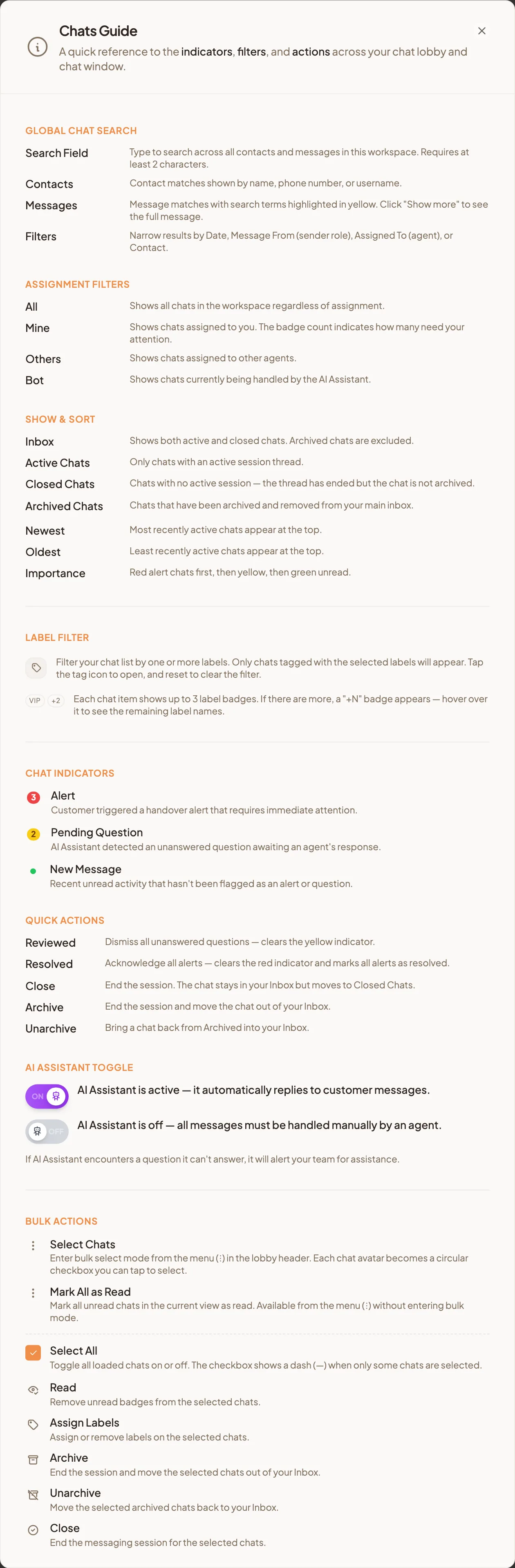
Open the Chats Guide
The Chats Guide is a one-page reference to every dot, filter and action in the lobby and the chat window. Point new staff to it on their first shift.
- Go to Chats.
- Select the information icon next to Chats at the top of the lobby.
- Read through the Chat Indicators, Assignment Filters, Show & Sort, Quick Actions and Global Chat Search sections.
- Close the guide with the X in its corner, or press Esc.
See only your chats, or only the bot's
The tabs under the search box decide whose chats you see.
- All shows every chat in the workspace, whoever it is assigned to.
- Mine shows the chats assigned to you. The red number on the tab counts how many of them need your attention.
- Others shows the chats assigned to other agents.
- Bot shows the chats your AI assistant is handling right now.
To give a chat to someone else, see Assign a chat.
If you are on the floor and only have time for your own customers, stay on Mine. When the red number on it reaches zero, your part of the inbox is clear.
Show active, closed or archived chats
- Select the menu under the tabs. It shows what you are looking at now, for example Inbox | Newest.
- Under Show, choose one:
- Inbox shows active and closed chats. Archived chats are left out.
- Active Chats shows only chats with an open session.
- Closed Chats shows chats whose session has ended but that are not archived.
- Archived Chats shows chats that have been archived out of your inbox.
- Under Sort by, choose one:
- Newest puts the most recently active chats at the top.
- Oldest puts the least recently active chats at the top.
- Importance - Red to Green puts red alert chats first, then yellow, then green unread.
Importance - Red to Green is the one to use at a busy lunch. Everything that needs a person floats to the top, and the chats your assistant has already answered sink below them.
Filter chats by label
- Select the tag icon next to the Show and Sort by menu. Filter by Label opens.
- Search for a label, or scroll the list.
- Tick one or more labels. The list shows chats tagged with the labels you picked.
- To go back to every chat, select Reset Label Filter.
Each chat in the list shows up to three of its labels. If it has more, a + badge appears; hover over it to read the rest. To create and colour labels, see Labels.
Search all your chats
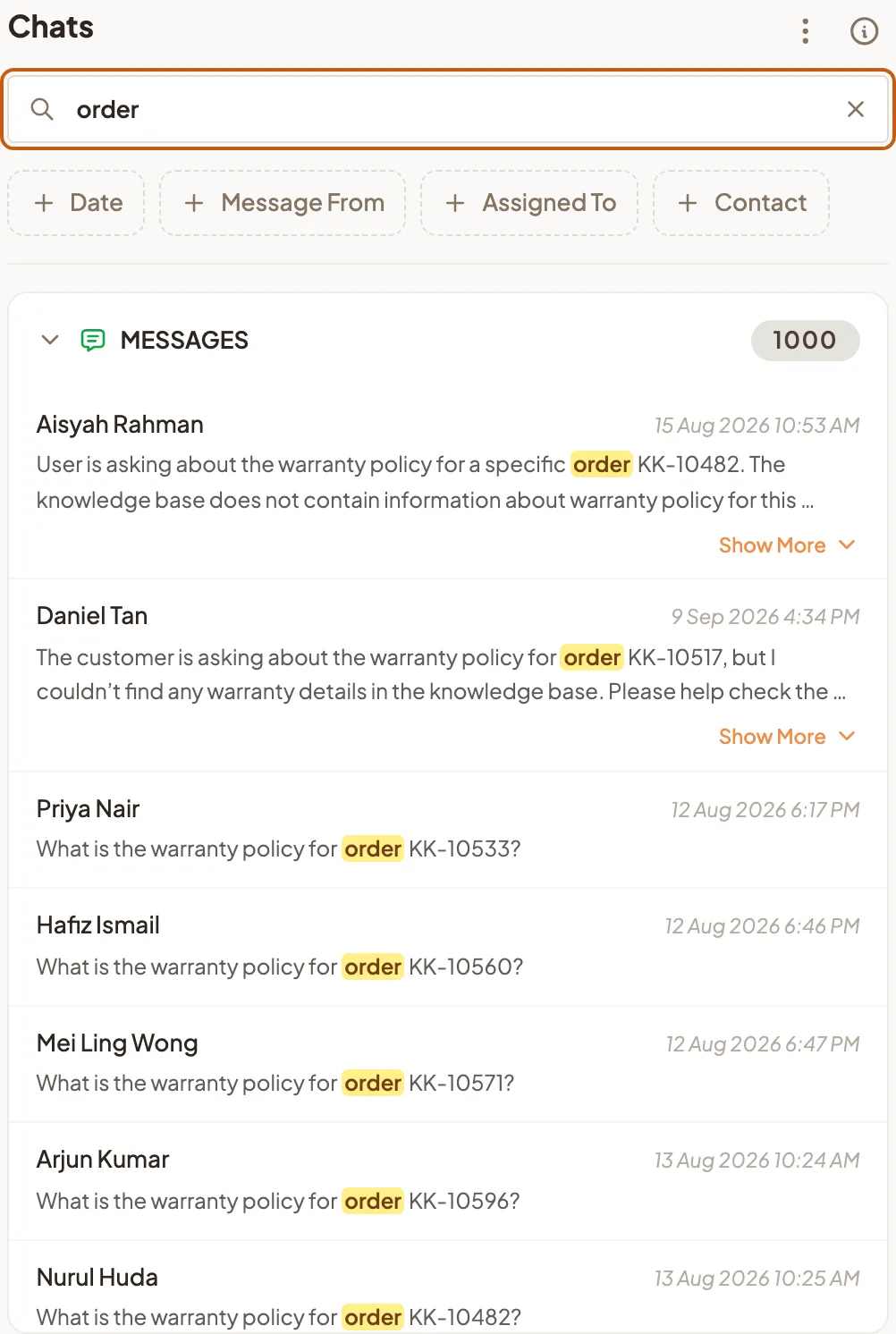
The search box at the top of the lobby looks through every contact and every message in your workspace, not only the chats on screen.
- Type at least two characters in Search.
- Results come back in two groups:
- CONTACTS matches on name, phone number or username.
- MESSAGES matches on what was said, with your search words highlighted in yellow. Select Show More to read a long message in full.
- Select a contact to open their chat, or select a message to open the chat at that exact message.
- Select the X in the search box to clear the search and go back to the lobby.
Your results stay on screen while you open chats from them, so you can check three customers in a row without typing the search again.
Narrow the search down
Once you start searching, four filters appear under the search box. Use them together to find one message out of thousands.
- Date only shows messages sent within the date range you pick.
- Message From only shows messages from Admin, Customer or AI / System.
- Assigned To only shows chats assigned to Me, AI Assistant or the agents you pick.
- Contact only shows results for the contacts you pick.
A customer says she was promised free delivery last week. Search free delivery, set Date to last week and Message From to Admin, and you are looking at exactly what your team told her.
To search inside one conversation instead, open the chat and press Ctrl and F. See Search inside a conversation.