
Reply to WhatsApp customers from a chat
Quick answer
Type in the message box at the bottom of a chat and press Enter to send; the toolbar underneath adds attachments, emoji, Smart Compose, Quick Responses and templates. Once 24 hours have passed since the customer's last message, the box locks and you reach them again with Send Template.

It is 7.40pm and six chats are waiting. One customer wants to know if you are still open, one has sent a photo of the wrong order, and one asked about a table for ten yesterday afternoon and never heard back. You type "yes still open till 10". It is true, it is fast, and it does not sound like your restaurant.
The message composer is the box at the bottom of every chat, plus the toolbar under it. With it you can:
- Reply to one particular message, and react to it with an emoji.
- Send a photo, video or document.
- Drop in a saved quick response with a slash.
- Rewrite a rushed reply in a warmer or more careful tone with Smart Compose.
- Reach a customer after the 24-hour customer service window with an approved template.
- Find anything said earlier in the same conversation.
Before you start
- You are signed in with an account that can reply to chats.
- Your WhatsApp Business account is connected.
Send a reply
- Open a conversation in Chats.
- Type in the box that says Type a message....
- Press Enter to send, or select Send. Press Shift and Enter when you want a new line instead.

Reply to a message and react with an emoji
When a customer has asked three things in a row, reply to the one you are answering so they can see which is which.
- Hover over the message and select the menu (⋮) beside it.
- Choose Reply. The message appears above the box as a quote.
- Type your answer and send it. It arrives on WhatsApp as a reply to that message.
To drop the quote before sending, press Esc. When a customer replies to one of your earlier messages, select the quote in their message to jump back to the original.
To react instead of typing a reply:
- Select the menu (⋮) beside the message.
- Choose Reaction and pick an emoji.
Pick the same emoji again to take your reaction back off. A thumbs up on "ok see you at 8" says everything and takes one second.
Send a photo, video or document
- Select the attachment icon in the toolbar.
- Choose Image, Video or Document, then pick the file.
- Add a message in the box if you want one to go with it.
- Select Send.
You can also paste an image straight into the message box, and it is attached for you.
| Type | Formats |
|---|---|
| Images | JPG, PNG, WebP |
| Videos | MP4, 3GP |
| Documents | PDF, DOC, DOCX, XLS, XLSX, PPT, PPTX, TXT |
Each file can be up to 10 MB, and you can send one attachment per message. To send a menu and a price list, send them as two messages.
When a customer sends you a file that can run code or carry malware, HeyBirdy marks it Potentially unsafe. Downloading it asks you to confirm with Download anyway. Only do that if you trust the sender.
Insert a Quick Response
Quick Responses are replies your team has saved, like parking directions or the corkage policy. Type / at the start of a word, or select the lightning icon in the toolbar, then pick a reply and press Enter to place it in the box.
To save a reply you have already sent, choose Convert to Quick Response from the menu (⋮) beside it. Quick Responses covers both in full, along with writing and editing them for your team.
Rewrite a reply with Smart Compose
Smart Compose takes the line you already typed and offers you three versions of it, before anyone sees it. You pick one, or you keep your own.
- Type your reply first. Smart Compose works on what you have written, so the message comes first.
- Select the wand in the message toolbar, or press Ctrl and the full stop key. On a Mac, press Cmd and the full stop key.
- Wait a moment while it works. You will see Generating variations... until the versions are ready.
- Move between the tones with the left and right arrow keys, or select a tone at the top of the panel.
- Press Enter, or select the version you want, to put it into your message box.
- Read it, change anything you want to change, then send it.
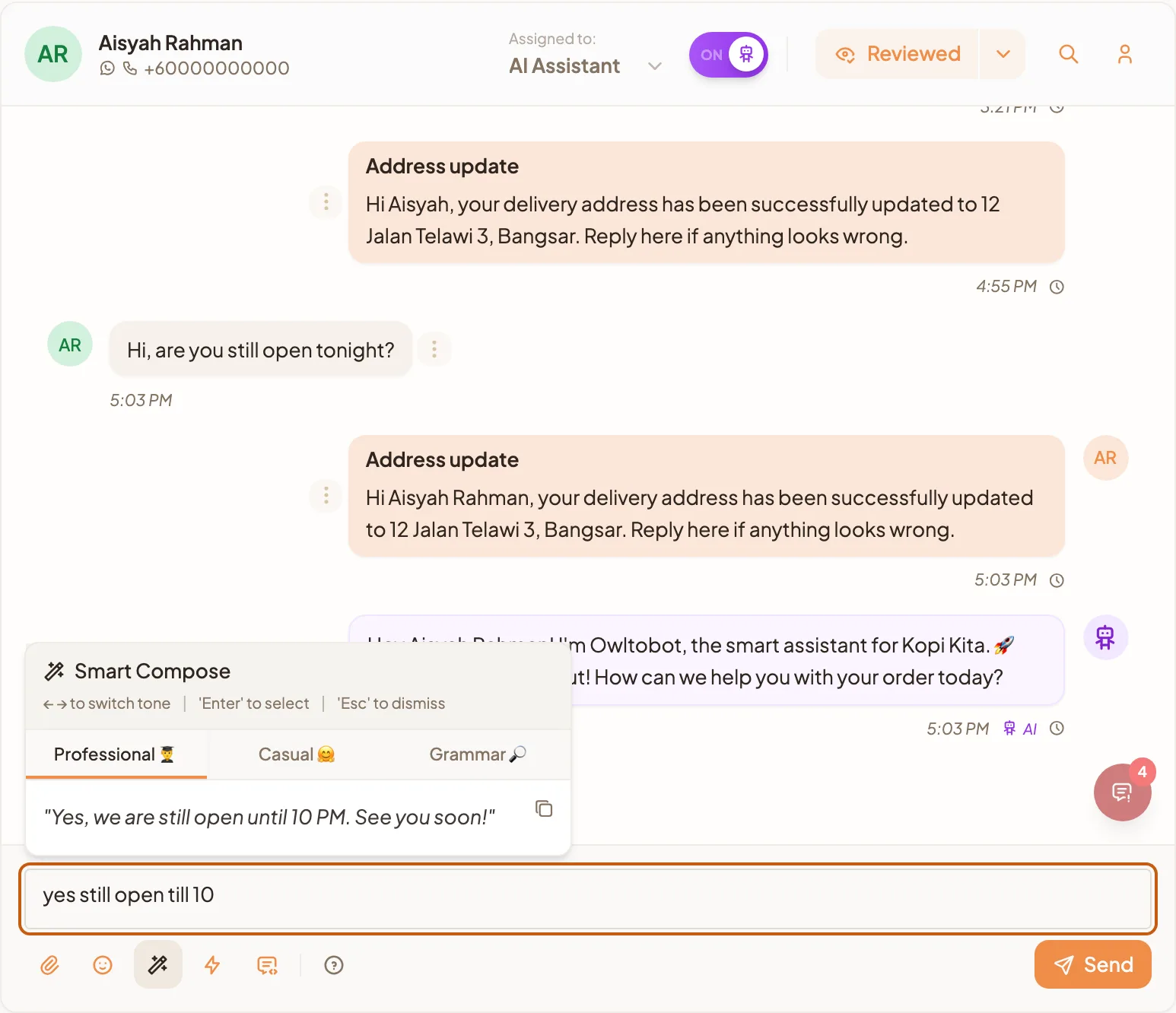
The three tones
Every rewrite comes back in the same three tones, so you learn where to look rather than reading all of them each time.
- Professional gives you the careful version. Use it for a complaint, a quote, or anyone you have not spoken to before.
- Casual gives you the warm version. Use it for a regular, or for a quick question at the end of a long day.
- Grammar keeps your wording and fixes the writing. Use it when you liked what you wrote and want it tidied rather than rewritten.
The tones are always in that order, so after a week your hand goes to the right one without reading the labels.
If nothing comes back
Smart Compose tells you what it needs rather than failing quietly.
- Type a message first, then use Smart Compose to generate tone variations. The message box was empty. Write your reply, then open the panel.
- Oops! Looks like there's not enough to work with. Try adding more context or a complete sentence. A few words is not enough to rewrite. Give it a full sentence and try again.
Neither of these changes your draft, so nothing is lost when you try again.
Send a template after the 24-hour window closes
Once 24 hours have passed since the customer's last message, the message box locks and shows 24-hour messaging window expired. From then on you reach them with an approved template. What is the 24-hour customer service window? explains why. The customer who asked about a table for ten yesterday afternoon is still worth a message.
- In the chat, select Send Template in the notice above the box. You can also use the template icon in the toolbar at any time.
- In Send Template Message, find the template in the list, or type in Search templates.... Only templates marked Approved can be picked.
- Select the template. Its Preview shows how the message will look.
- Under Fill in Template Variables, fill in every box. Each box starts with the sample value from the template, so replace it with this customer's details.
- If the template has a picture, video or document at the top, add it under Header image, Header video or Header document: select Choose file to upload one, or switch to the link icon and paste a web address.
- Select Send Template. The button becomes available once every box is filled.
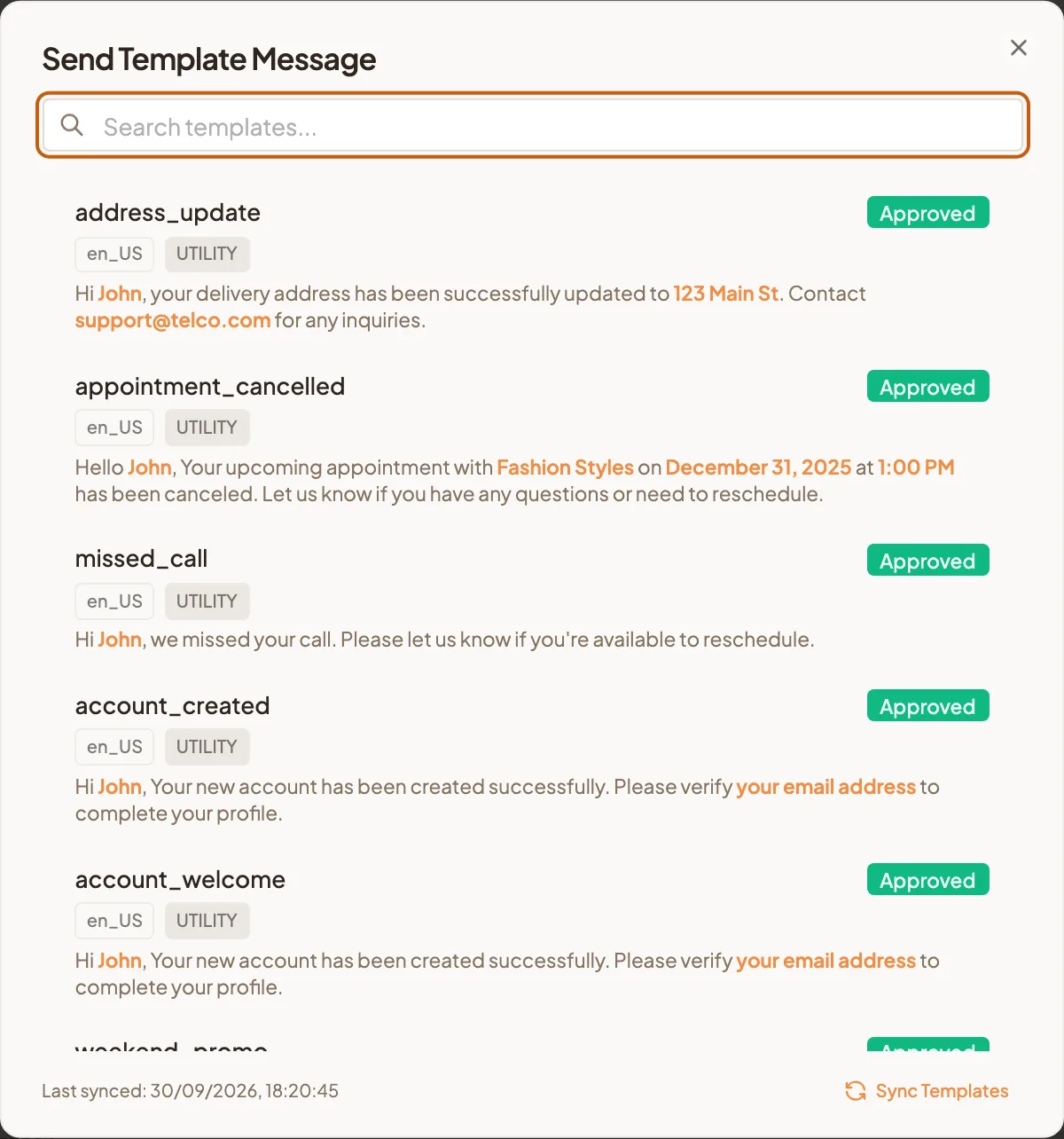
If a template you created recently is missing, select Sync Templates at the bottom of the list to fetch the latest from WhatsApp. Templates marked In review can be sent once Meta approves them. Hover over one to see Review may take up to 48 hours.
Create a template from the chat window
If your workspace has no templates yet, the list shows Create Template. Selecting it submits a ready-made follow-up template to WhatsApp for approval. It greets the customer by name, says you would like to follow up on their recent conversation, and offers a Continue Chat button so they can pick the conversation back up. You see Template submitted for approval, and it appears in the list as In review until Meta approves it. When you send it, check the name box: it is filled with the name your team sees, which may be a nickname.
To write your own templates, with your wording, offers and pictures, see Check WhatsApp template approval and performance.
Search inside a conversation
- Open the chat and press Ctrl and F, or select the search icon at the top of the chat. On a Mac, press Cmd and F.
- Type in Search in this chat.... Matching messages are highlighted, and the count shows which result you are on.
- Press the up arrow for an older result and the down arrow for a newer one, or use the arrow buttons beside the box.
- Press Esc to close the search.
When the box is empty, your Recent searches appear under it, so the order number you looked for this morning is one click away. They are kept on this browser for your workspace only.
Keyboard shortcuts
The question mark icon at the end of the toolbar opens the Message Input Guide, a reference to every toolbar tool and the first four shortcuts below.
| Keys | What it does |
|---|---|
| Enter | Send message |
| Shift + Enter | New line |
| Ctrl+. / Cmd+. | Open Smart Compose |
| / | Search Quick Responses (type at start of message) |
| Ctrl+F / Cmd+F | Search messages in this chat |
| Esc | Close the search, or cancel the reply you are quoting |
A week of Enter, the slash and Ctrl plus full stop, and replies that took a minute take ten seconds.