
Check WhatsApp template approval and performance
Quick answer
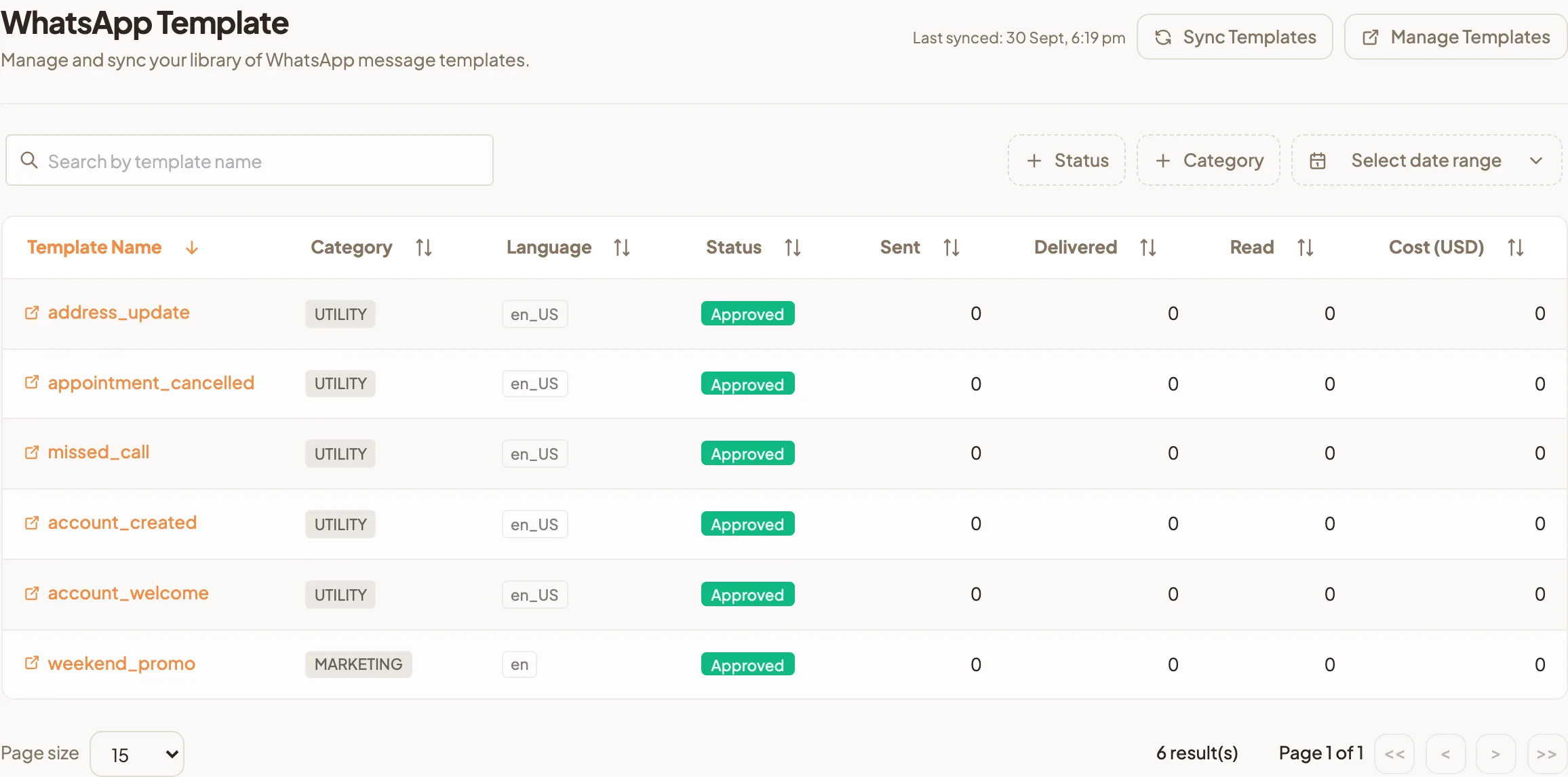
Templates lists every WhatsApp message template on your WhatsApp Business account, with its Meta approval status and how it performed. You create and edit templates in Meta's template manager, then select Sync Templates so HeyBirdy picks up the latest versions.
Your Hari Raya promo template went in for review on Friday. It is Monday morning, the campaign is meant to go out at noon, and you want to know whether Meta has said yes before you tell the team it is on.
A WhatsApp message template is a pre-written message that Meta has approved for you to send first, including to customers who have not messaged you recently. Templates is where you check which of yours are approved, which are still waiting, and how the approved ones performed once they went out.
With it you can:
- See at a glance which templates are Approved, Rejected or In Review.
- Pull the latest versions from WhatsApp with one button.
- Jump to Meta's template manager to create or fix a template.
- Compare how many messages each template sent, delivered and got read, and what they cost.
Before you start
- Your WhatsApp Business account is connected under Settings, then WhatsApp Business.
- You are signed in as an Admin or a Support Agent. Both can open Templates.
- You can sign in to the Meta Business account that owns your WhatsApp Business account. That is where templates are created.
Check whether a template is approved
- Go to Templates in the sidebar.
- Find your template by typing in Search by template name, or narrow the list with the Status and Category filters.
- Read the Status column:
- Approved: Meta has cleared it. You can use it in a campaign or send it from a chat.
- In Review: Meta has not decided yet.
- Rejected: Meta turned it down. See why a template gets rejected below.
The Category column shows whether Meta filed the template as Marketing, Utility or Authentication. The category matters because Meta prices each one differently; see What are WhatsApp message categories?
Sync your latest templates
HeyBirdy syncs your templates from WhatsApp each time you open the page. When you have created or edited a template in Meta and want to see the change straight away:
- Select Sync Templates at the top of the page.
- The page shows Syncing from WhatsApp... while it works.
- When it finishes, Last synced shows the time of this sync.
A template you deleted in Meta also disappears from this list after a sync, so the list always matches what you can actually send.
Create a new template
You write templates in Meta's template manager, not in HeyBirdy. The one exception is a ready-made follow-up template you can create from the chat window when you have none yet.
- Select Manage Templates. Meta's template manager opens in a new tab.
- Create your template there and submit it for review.
- Come back to HeyBirdy and select Sync Templates. The new template appears with the status In Review.
Selecting a name in the Template Name column also opens Meta's template manager, which is the quickest way back to a template you need to edit.
Meta reviews every template before you can send it. While it is In Review, you cannot use it in a campaign yet. HeyBirdy's own hint for templates in review is that it may take up to 48 hours. Meta publishes the rules templates must follow, and WhatsApp rules and compliance explains the ones that matter most.
Why a template gets rejected
HeyBirdy shows you the result of Meta's review but not Meta's reason. To see the reason, open the template in Meta's template manager with Manage Templates, or select its name in the list.
Common causes are badly formatted variables, a category that does not match the content, and content that breaks Meta's policies. Why do WhatsApp message templates get rejected? explains them and links to Meta's review rules.
Edit the template in Meta's template manager to address the reason given, resubmit it, then select Sync Templates to see the new status.
See how a template performed
The Sent, Delivered, Read and Cost columns show how each template did. The currency appears next to Cost, taken from your WhatsApp Business account.
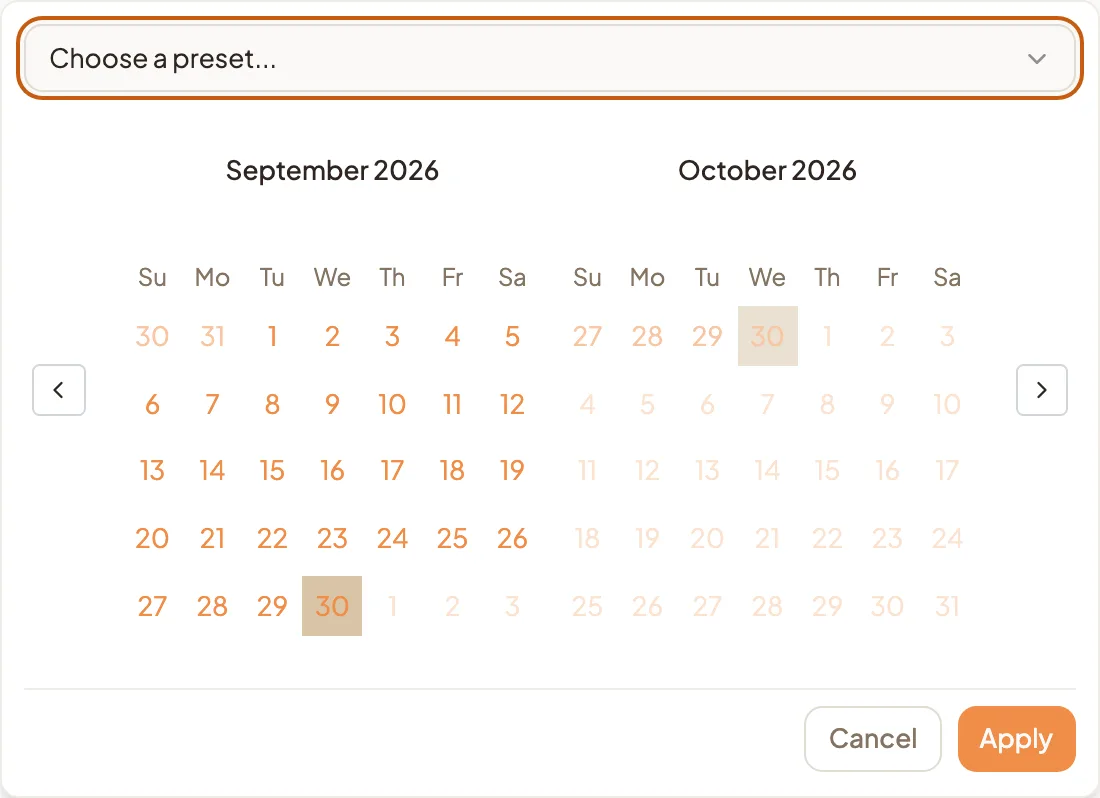
- Select Select date range next to the Category filter.
- Pick a preset such as Last 30 days from Choose a preset..., or choose your own start and end dates, then select Apply.
- The figures in the table update for that period. HeyBirdy shows Fetching analytics data... while it collects any days it does not have yet.
With no date range picked, the columns add up everything HeyBirdy has recorded for each template.
A dash in a column means there is no analytics data for that template in the period you picked.
If you see "Template Analytics Not Enabled"
After a sync, HeyBirdy may show Template Analytics Not Enabled with a list of template names. It means Meta is not sharing analytics for those templates yet.
- In Meta WhatsApp Manager, turn on Template Insights for your WhatsApp Business Account.
- Come back to HeyBirdy and select Sync Templates.
Once insights are on, the numbers start filling in, and you can see which of your messages customers actually read.