
Connect and manage your WhatsApp Business account
Quick answer
Go to Settings, then WhatsApp Business, and select Connect with WhatsApp Business to link your account through Meta's own sign-up window. Once connected, the same page shows your number's status and quality rating and lets you edit the business profile customers see.
You moved from the old shoplot in SS2 to a bigger unit two streets away. The signboard is up and the Grab listing is fixed. Then a regular turns up at the old address, because that is what your WhatsApp profile told her.
This page is where your WhatsApp Business account and HeyBirdy meet. Connect once through Meta, then come back whenever you need to check that your number is healthy or update the profile customers see when they message you.
On this page you can:
- Connect your WhatsApp Business account through Meta's sign-up window.
- Check your number's status, quality rating and message limits.
- Verify your number with a code by SMS or voice call.
- Update your profile photo, About, description, address, email and websites.
- Ask WhatsApp to change your display name.
- Open WhatsApp Manager to manage phone numbers and payment methods.
For what a WhatsApp Business account (WABA) is and what the quality rating means, see WhatsApp Business basics.
Before you start
- You are signed in as an Admin.
- You can log in to Facebook with the account that manages your business, because Meta's setup runs through Facebook.
- You have the phone number you want to use with you, so you can receive a verification code.
Connect your WhatsApp Business account
- Go to Settings, then WhatsApp Business. You see Connect to WhatsApp Business.
- Select Connect with WhatsApp Business. For a moment the button reads Loading Facebook SDK... while Meta's window gets ready.
- Meta's window opens. Follow its steps to choose your business and connect your phone number.
- When the window closes, HeyBirdy finishes the connection and confirms that your WhatsApp Business account is connected.
If you close Meta's window before the end, nothing is connected. Select Connect with WhatsApp Business again to start over.
Check your phone number status
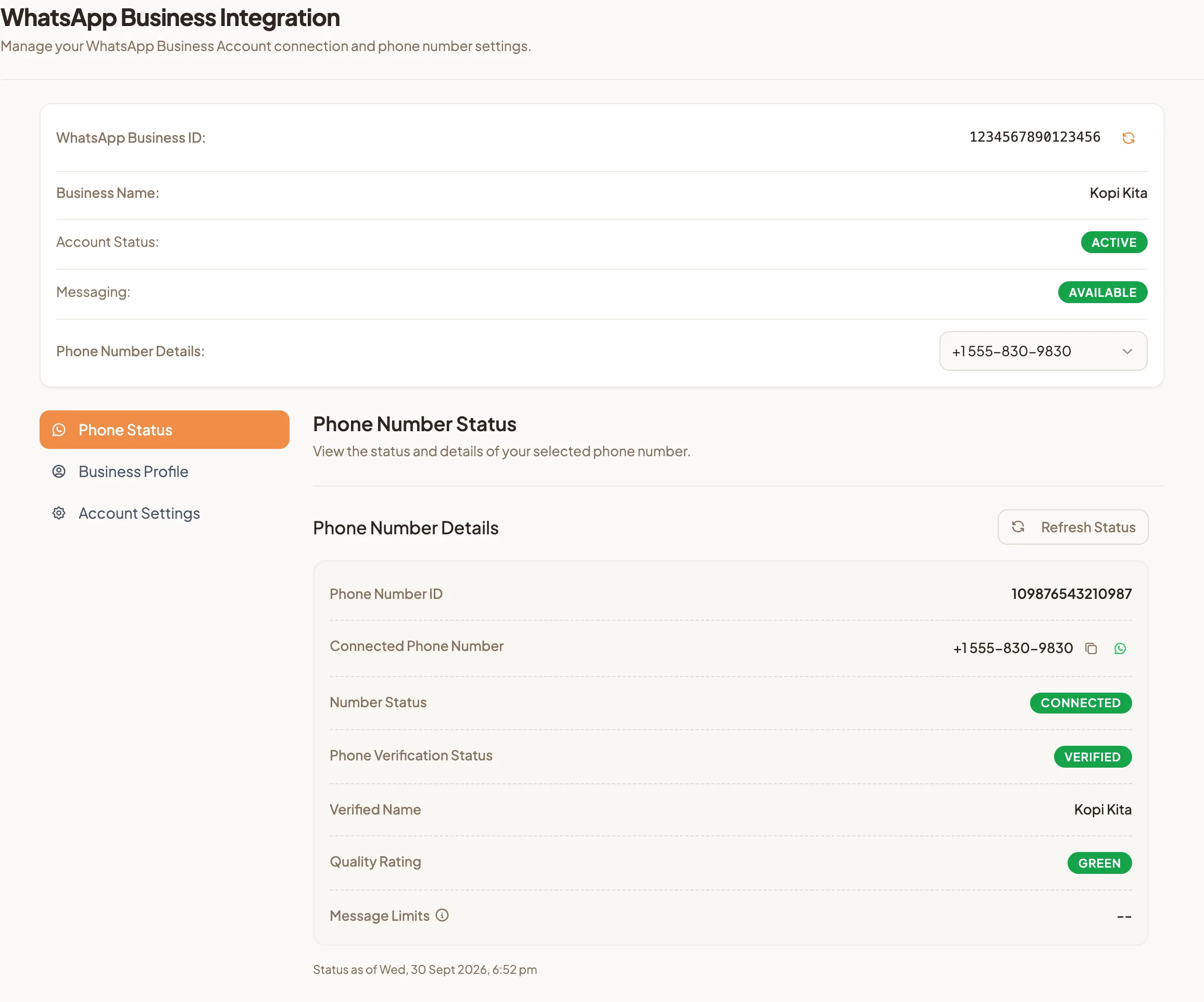
Once you are connected, the top of the page shows your WhatsApp Business ID, business name, Account Status and messaging status. If you have more than one number, pick the one you want under Phone Number Details.
The Phone Status tab shows the details of that number:
- Connected Phone Number and Phone Number ID. Select the copy icon to copy the number.
- Number Status, as reported by WhatsApp.
- Phone Verification Status, with a button to verify when it is needed.
- Verified Name, the name WhatsApp has approved for your business.
- Quality Rating, WhatsApp's colour rating for your number.
- Message Limits, the number of unique customers you can message in a rolling 24-hour period. Meta sets and raises this limit; see WhatsApp Business basics for how it grows.
Select Refresh Status to fetch the latest details from WhatsApp. The line under the details shows when they were last updated. The refresh icon beside your WhatsApp Business ID does the same for the whole account.
Verify your phone number
If your number is not verified, or its verification has expired, an Action Required notice appears on the Phone Status tab with a Verify or Re-verify button beside Phone Verification Status.
- Select Verify, or Re-verify if the verification has expired.
- Under Request Verification Code, choose Text Message (SMS) or Voice Call.
- Select Send Code.
- Type the 6-digit code under Enter Verification Code, then select Verify.
No code yet? A countdown shows under the code box. When it finishes, select Resend code.
If you request codes too many times, WhatsApp asks you to wait an hour before trying again.
Update your business profile
This is what customers see when they tap your business name in WhatsApp.
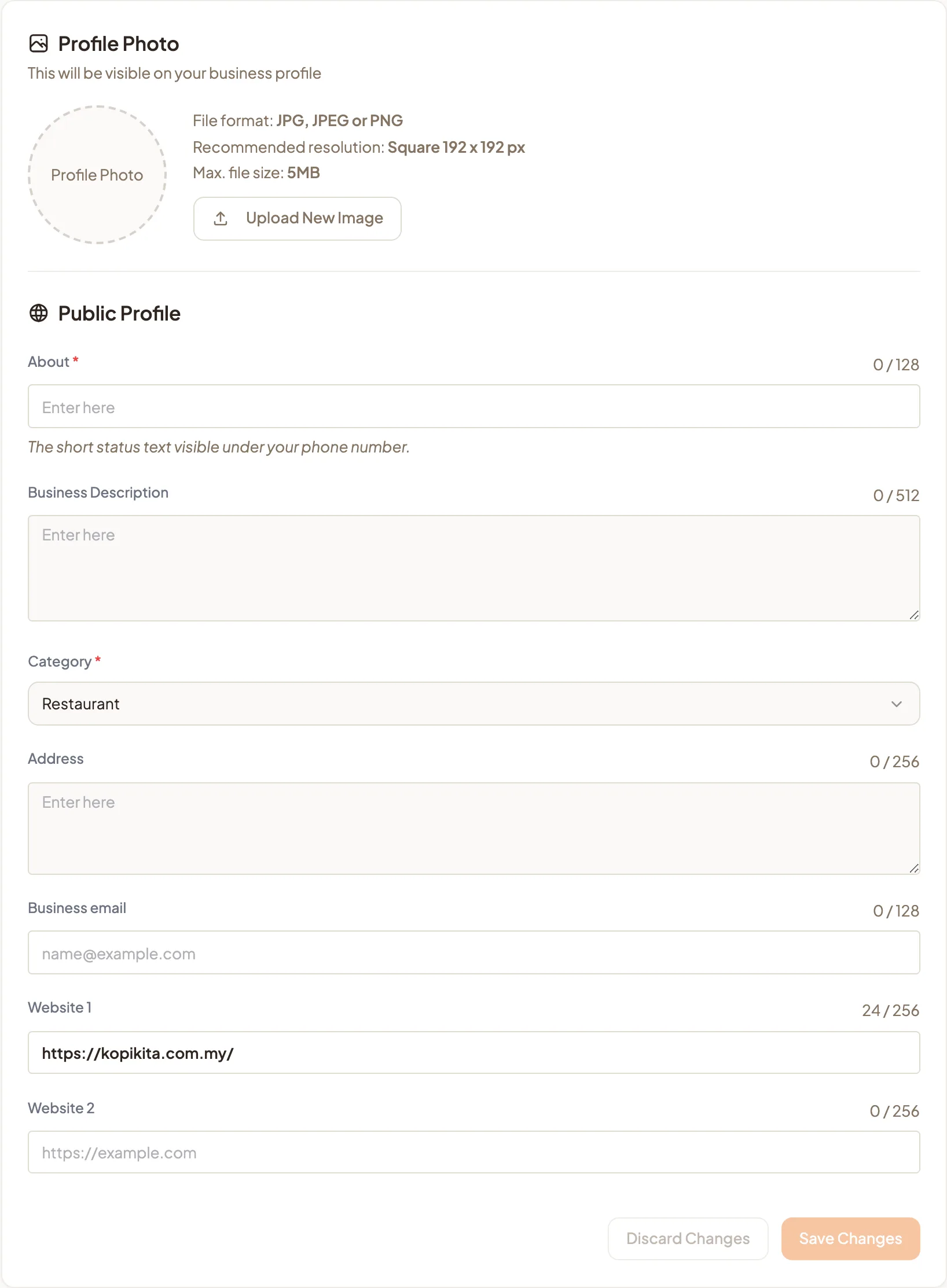
- Open the Business Profile tab.
- Under Profile Photo, select Upload New Image. Use a JPG, JPEG or PNG file up to 5MB. A square 192 x 192 px image works best.
- Under Public Profile, fill in:
- About, the short status text under your phone number. It is required, up to 128 characters.
- Business Description, for what you sell, where and when.
- Category, which is required.
- Address, Business email, Website 1 and Website 2.
- Select Save Changes. To go back to what was there, select Discard Changes instead.
Some changes are reviewed by WhatsApp and can take a short time to show on your profile.
Change your display name
Your display name is the business name WhatsApp shows to customers. Every change goes through a review by WhatsApp.
- On the Business Profile tab, find Display Name. It shows your Current display name.
- Select Request Name Change.
- Type the name in New display name.
- Select Submit for Review.
HeyBirdy shows how long WhatsApp's review usually takes when you submit. Check WhatsApp Manager or your email for updates on a pending request, and read Meta's display name guidelines before you choose a new name.
Manage phone numbers and payment methods
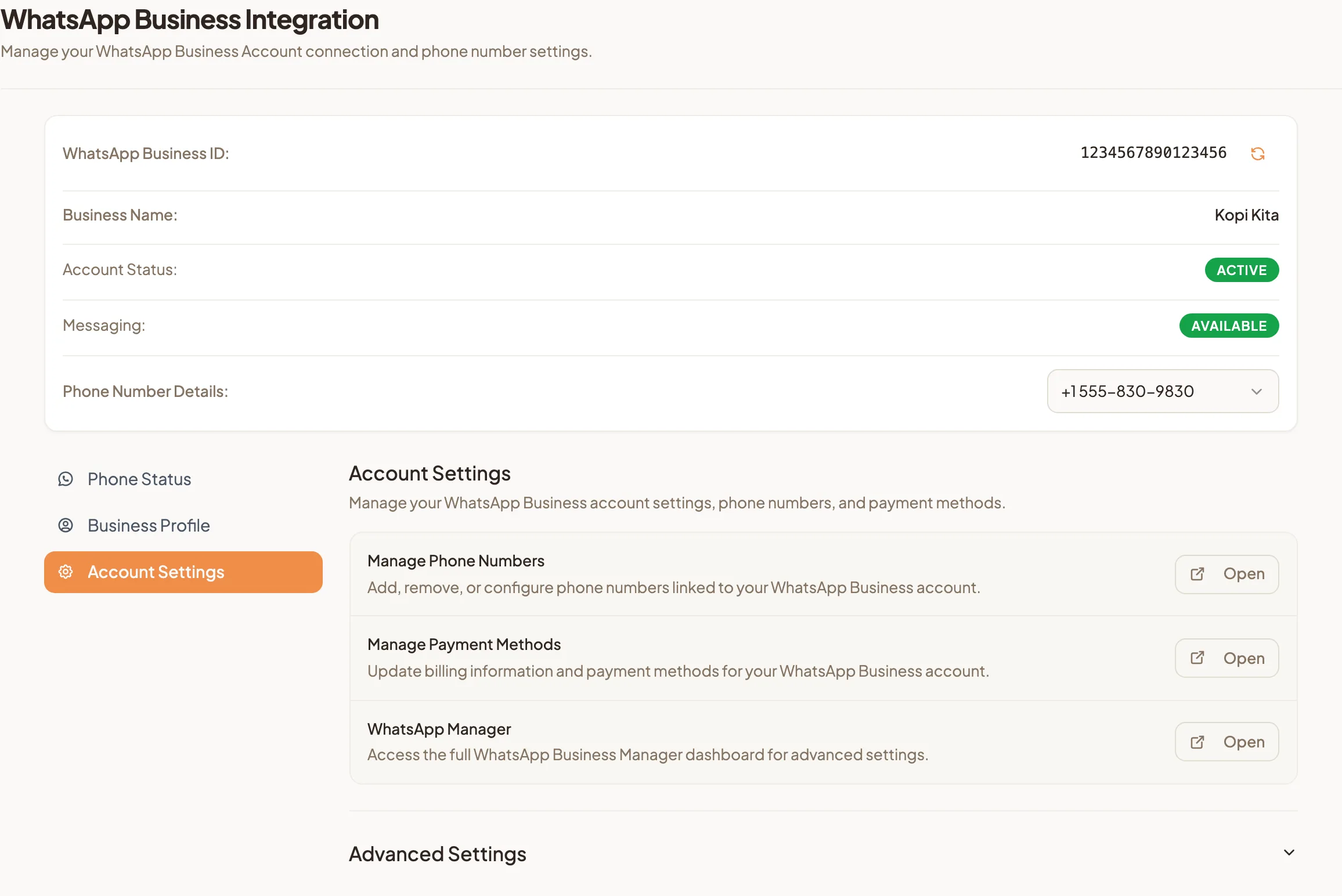
The Account Settings tab links you to your account in Meta's WhatsApp Manager. Each Open button opens it in a new tab.
- Manage Phone Numbers to add, remove or configure the phone numbers linked to your WhatsApp Business account.
- Manage Payment Methods to update the billing information and payment methods for your WhatsApp Business account.
- WhatsApp Manager for the full dashboard and advanced settings.
Disconnect your account
- On the Account Settings tab, expand Advanced Settings.
- Under Disconnect Account, select Disconnect Account.
- Read what will happen, then select Disconnect.
Keep the profile current and the next regular who looks you up on WhatsApp walks into the right shop.