
Campaigns
Quick answer
Go to Campaigns, then All Campaigns, and select New Campaign. Pick an approved template, choose who receives it with Filter by Labels, then send now, schedule it or save it as a draft after sending yourself a test.
Your new outlet opens on Saturday, and two thousand customers would want to know. Sending that one chat at a time is a lost afternoon.
Campaigns sends your approved WhatsApp template to the whole list at once, then shows you exactly who received it, who read it, and who did not.
Before you start
- Your WhatsApp Business account is connected.
- You need at least one template that Meta has approved. Sync your library under Templates.
- Add the contacts you want to reach, and apply labels if you plan to send to a segment rather than everyone.
- Check your workspace time zone, the Business Clock. Scheduled campaigns use it, not your device clock.
Create and send a campaign
- Go to Campaigns, then All Campaigns, at your HeyBirdy dashboard, then select New Campaign.
- Under Campaign Identity, enter a Campaign Name you will recognise later, then select a template with Select a template.
- If the template contains variables, use Fill Variables. Choose Contact Field to pull each recipient's own details, or Custom for one fixed value across the blast.
- Under Recipients, use Filter by Labels to narrow the audience. Leave it empty to send to All Contacts. The screen shows how many recipients you will reach.
- Under Scheduling, pick Send Now, Schedule for a future date and time, or Save for Later to keep it as a draft.
- Select Continue to reach Confirm Campaign. Use Send a test to send the template to one number first. Enter digits only with the country code, for example 60123456789.
- Confirm the blast. A campaign sent with Send Now starts immediately and cannot be undone.
Your message goes out to everyone on the list while you get on with the rest of your day.
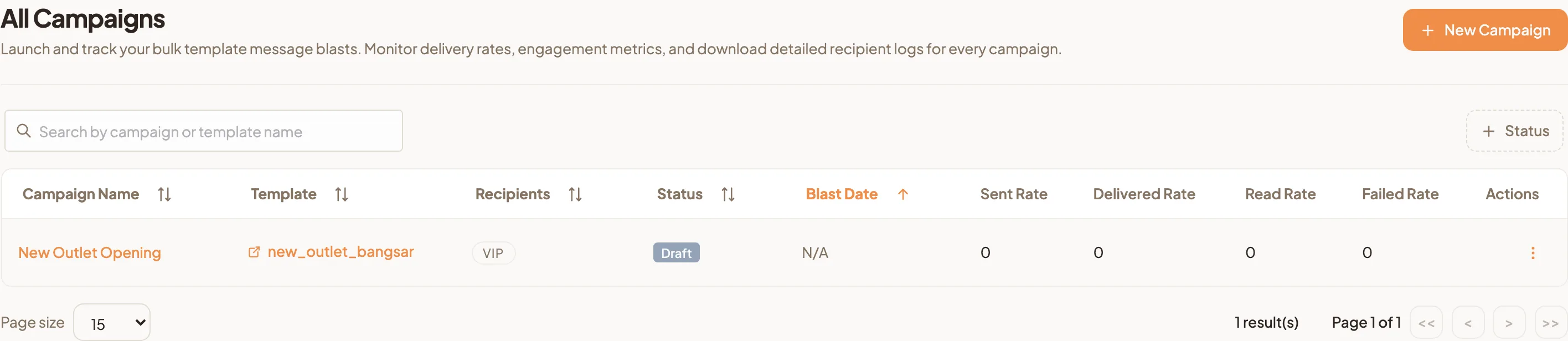
Track and manage a running campaign
When a campaign finishes, its page confirms that it is done and shows the results underneath.
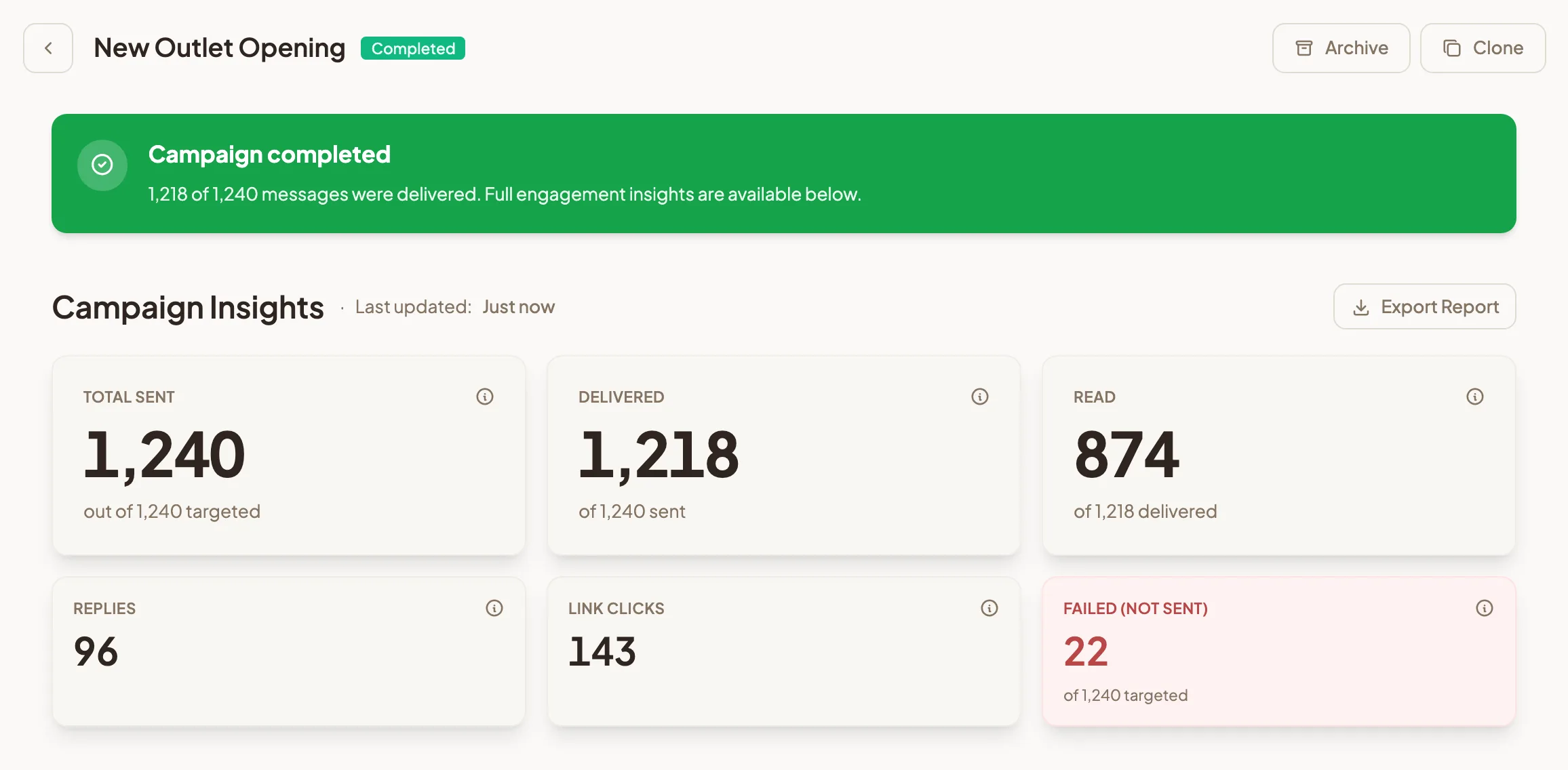
The All Campaigns list shows Sent Rate, Delivered Rate, Read Rate and Failed Rate for each blast. Open View Details for per recipient logs and Export Report for the full record.
From the actions menu on each row you can:
- Resume to continue a campaign that was paused, once you are happy to carry on.
- Retry Failed to send again only to the people who did not receive the message. Everyone who already got it is left alone.
- Unschedule to pull a scheduled campaign back to Draft, where you can edit it and pick a new time.
- Archive to tidy a finished campaign out of your active list. Its results stay available under the Archived filter.
- Stop Sending to end a campaign early. Use this one carefully: the campaign cannot be restarted afterwards, and messages that have already gone out cannot be recalled.
No guessing about whether the message landed. You can see it.