
View a customer's profile, remarks and AI persona
Quick answer
Select a contact's name in All Contacts, or the person icon at the top of a chat, to open Contact Details. You can change the nickname, labels and remark there, and read the Contact Persona that HeyBirdy builds from past conversations.
A message comes in from "Lim K. H." asking if his usual is ready. Your morning barista would know him as Uncle Lim, oat latte, less sweet, collects at 8.15. Your afternoon staff have never met him.
Contact Details is one customer's page: who they are, who on your team looks after them, what your team has noted about them, and what HeyBirdy has learned from their past chats. Whoever picks up the chat can greet Uncle Lim like a regular, even on their first shift.
With Contact Details you can:
- See a customer's phone number, email, country, channel and assigned agent.
- Give them a nickname your team recognises, shown in place of their WhatsApp name.
- Leave a remark every teammate sees at the top of the chat.
- Add or remove labels.
- Read their Contact Persona: a summary of what they ask about, what they care about, and when they tend to reply.
Before you start
- You are signed in as an Admin or a Support Agent. Both can open and edit Contact Details.
Open a contact's details
- From Contacts: go to All Contacts and select the contact's name, or choose Edit Contact from the menu (⋮) at the end of the row.
- From a chat: open the conversation in Chats and select the person icon at the top right. Contact Details opens beside the chat, so you can read it without leaving the conversation.
Both show the same information, and changes you save in one appear in the other.
Read the profile
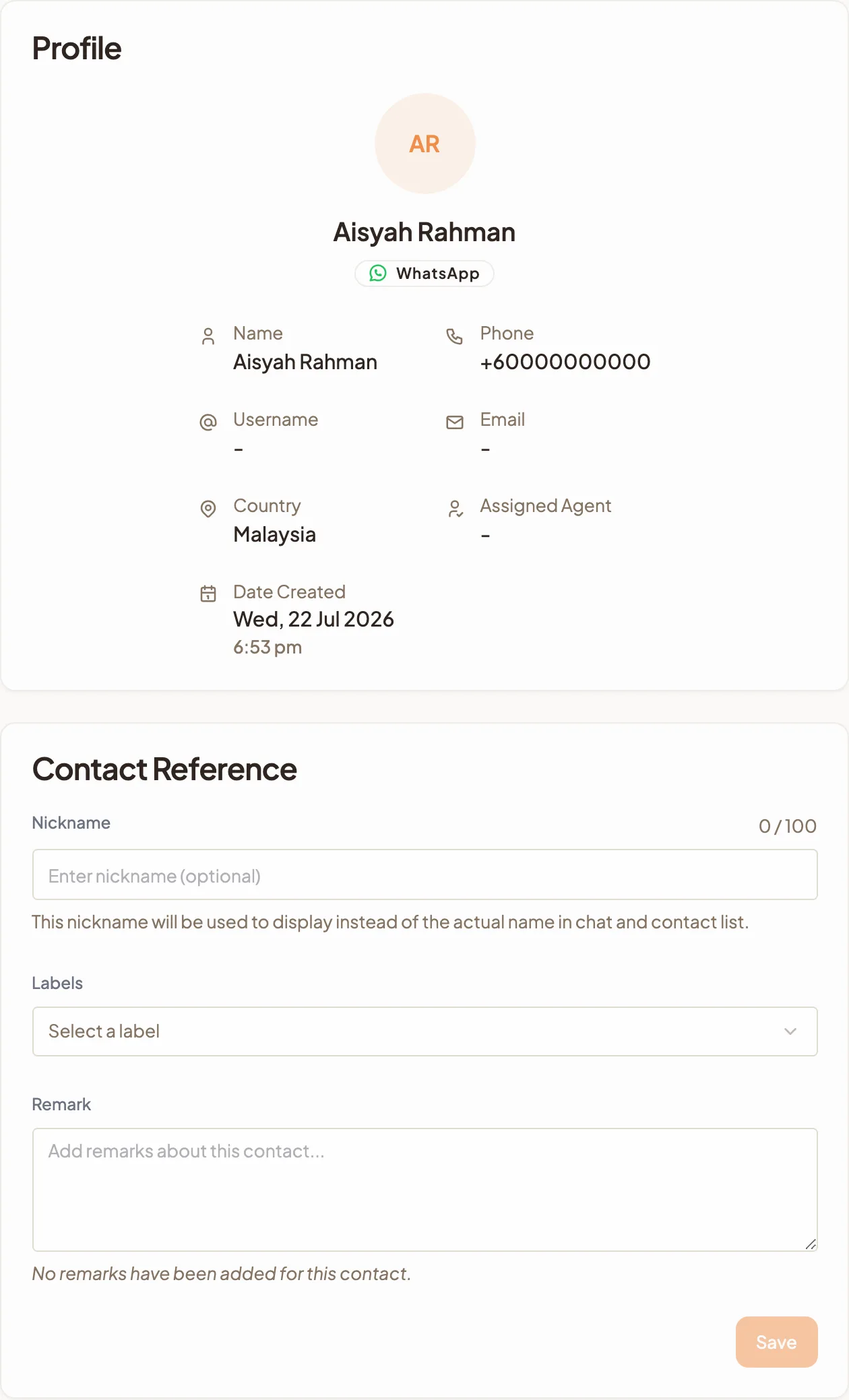
The Profile section shows the customer's picture, the name your team sees, and the channel they message on. Under it:
- Name: their name, when HeyBirdy has one.
- Phone: their number, with country code.
- Username: their WhatsApp username, if they use one.
- Email: their email address, if you added or imported one.
- Country: the country their number is from.
- Assigned Agent: the teammate who has their chat. A dash means nobody is assigned and your AI assistant is looking after them.
- Date Created: when they were added to HeyBirdy.
These details are shown here but cannot be edited. To change the Assigned Agent, use the Assigned to menu in the chat. See Assign a chat.
Give a contact a nickname
- Open the contact's details.
- Under Contact Reference, type in Nickname, for example Uncle Lim (oat latte). You have up to 100 characters.
- Select Save.
The nickname replaces their WhatsApp name in your chats and your contact list, so everyone on your team knows who is messaging. It is meant for your team, not the customer.
Add a remark for your team
A remark is a note about the customer that stays with them, such as "Allergic to peanuts, always confirm" or "Corporate account, invoice to HR".
- Open the contact's details.
- Type in Remark.
- Select Save.
Every teammate who opens this customer's chat sees the remark in a strip under the chat header. A long remark shows its first lines, with Show more to read the rest. The peanut allergy is in front of whoever takes the order, every time.
Change a contact's labels
- Open the contact's details.
- Under Labels, pick the labels you want and remove the ones you do not. To make a new one, type its name and choose the option to create it.
- Select Save.
You can change the nickname, labels and remark together and save once. Save only becomes available after you change something. For creating, colouring and deleting labels, see Labels.
Read the AI Contact Persona
The Contact Persona at the bottom is written by HeyBirdy from this customer's past conversations. It is built and updated automatically after each conversation, so there is nothing to fill in. A customer who has not finished a conversation yet shows No persona data yet. Persona is built automatically after each conversation.
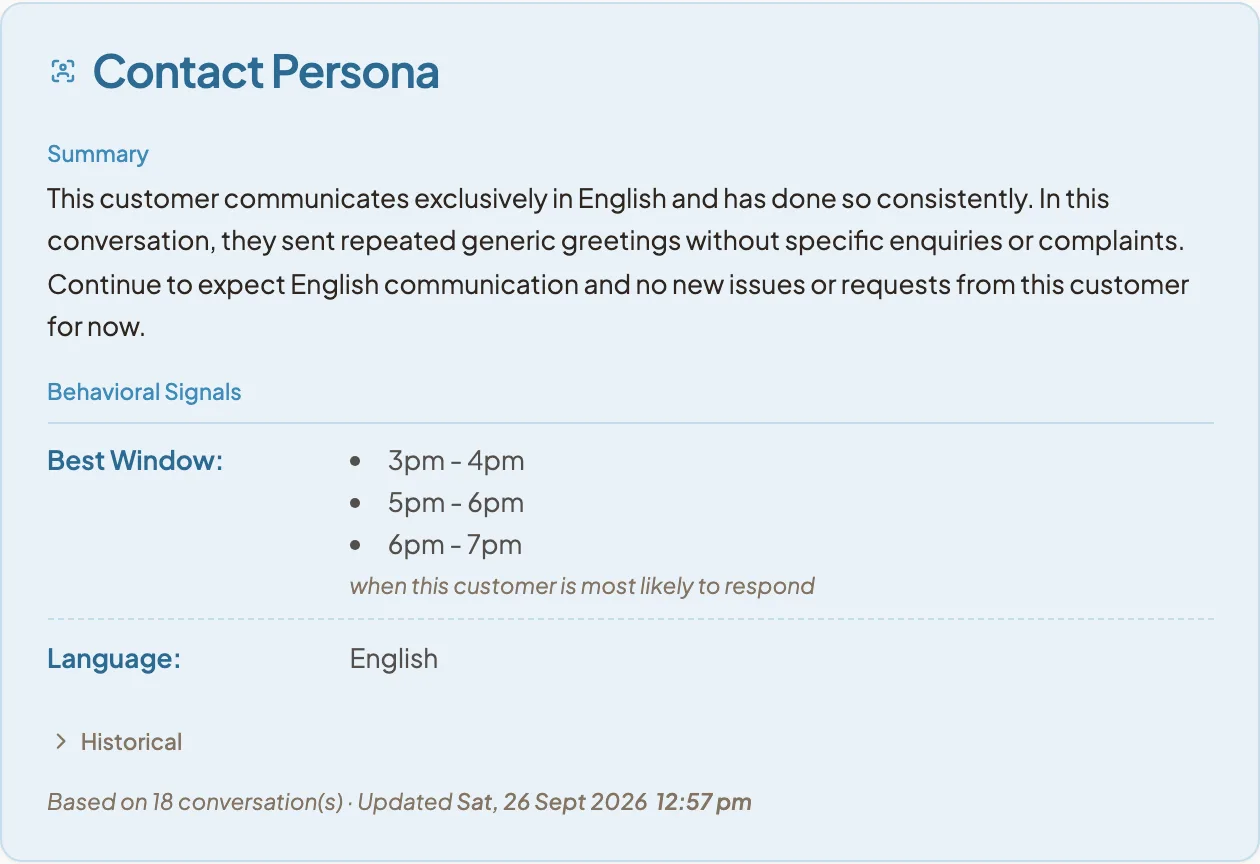
- Summary is a short description of the customer and what they come to you for. Read it before you reply to someone you have not served before.
- Behavioral Signals are what HeyBirdy has noticed, grouped by type: Product Enquiries, General Enquiry, Purchase Intent, Price Sensitive, Language, Best Window, Complaint and Friction Point. A customer might show purchase intent for your 1kg cakes and a preference for replies in Malay.
- Best Window is when this customer is most likely to respond, shown in your workspace's Business Clock time zone. Use it to time a follow-up or a template so it lands when they are looking at their phone.
- Historical holds signals that no longer apply to this customer. It starts collapsed; select it to open the list.
The line underneath shows how many conversations the persona is based on and when it was last updated. The more a customer chats with you, the sharper it gets. For patterns across all your customers rather than one, see Chat Analysis.
When a persona changes, the chat also shows a Contact Persona Update note for your team, with a button such as Show 3 signals to see what changed. It is a note for your team, not a message to the customer.