
Find, add and export your WhatsApp contacts
Quick answer
Go to Contacts, then All Contacts, and type a name, phone number or country in the search box; use the Country and Labels filters to narrow the list. Select Add Contact to create one by hand, or Export to download the contacts you are looking at as a CSV file.
A caterer calls to confirm Friday's delivery to "the lady from Shah Alam who ordered the nasi lemak for 80". You know she messaged on WhatsApp last month. You do not know her name, and you have a pen in one hand and a ladle in the other.
All Contacts is the list of every customer who has messaged your business, plus anyone you have added or imported. You can find the Shah Alam customer by phone, country or label, see when she last chatted, and open her full profile in one click.
With All Contacts you can:
- Search by name, phone number or country, and filter by country and label.
- See at a glance who has an open chat and who can only be reached with a template.
- Add a customer by hand, such as a walk-in who gave you their number at the counter.
- Update a contact's nickname, labels and remarks.
- Label many contacts at once, and export your list as a CSV file.
Before you start
- Your WhatsApp Business account is connected. Export, Import and Add Contact appear once it is.
- You are signed in as an Admin or a Support Agent. Both can use Contacts.
Find a contact
- Go to Contacts, then All Contacts.
- Type in Search by name, phone, country.... The list updates as you type.
- To narrow it down, use the Country and Labels filters. You can pick more than one of each.
- Select Reset to clear the filters.
Each row shows the Contact, their Country, when they last chatted under Last Chat, their Labels, and when they were Created. The icon beside each name shows the channel they came in on. Select a column heading to sort by it; the list starts with the most recent chats at the top.
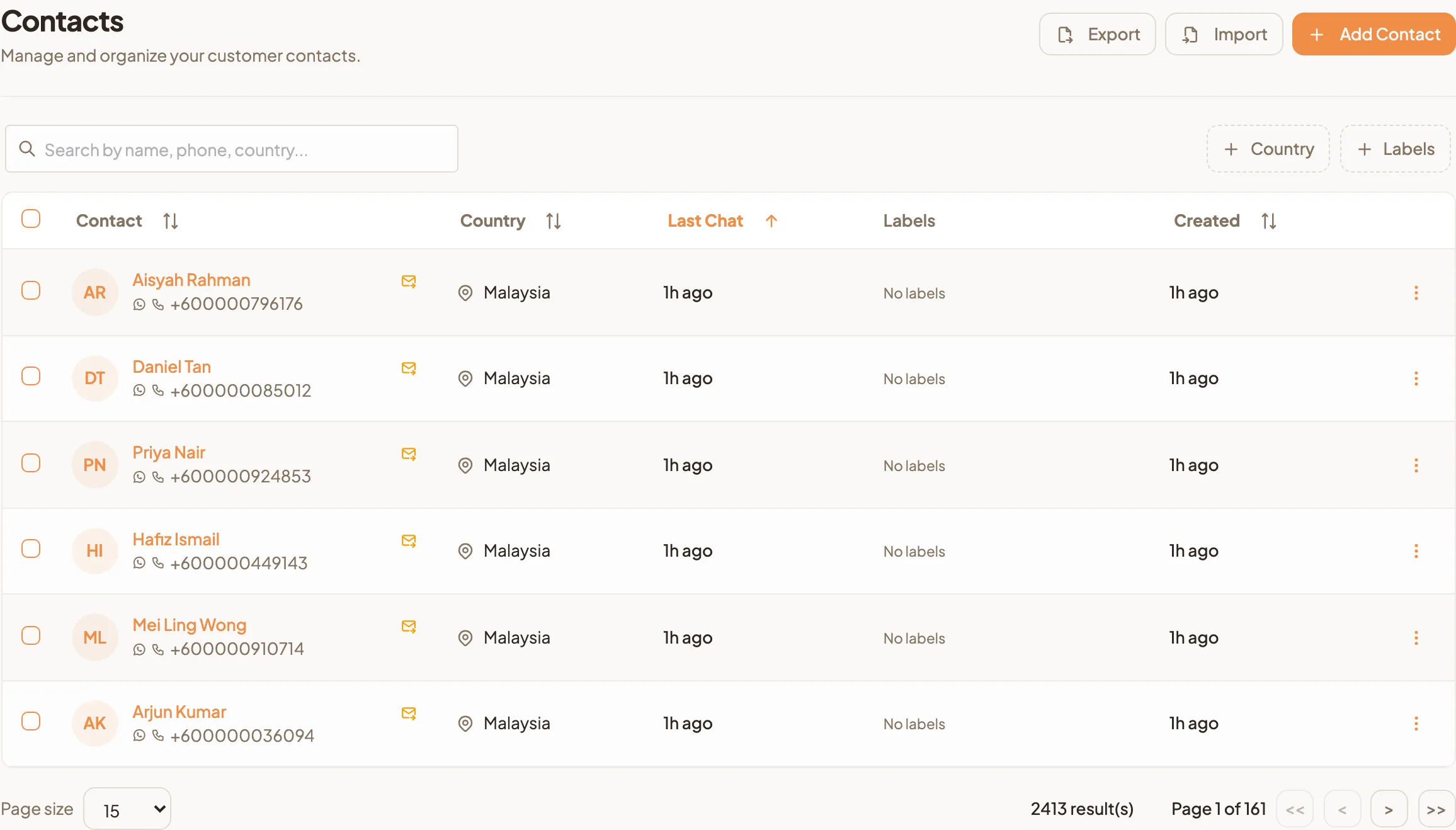
A row shows up to four labels. When there are more, hover over the + badge to see the rest.
Know who you can message freely
Some contacts have a small amber envelope icon beside their name. Hover over it and it says This contact has no active chat. You can only send WhatsApp templates.
That customer has no open conversation with you right now, often because you imported or added them and they have not messaged you yet. You can still reach them with an approved template, one by one from the chat window or all together in a campaign. Once they reply, the icon goes and you can chat normally.
Add a contact by hand
A regular gives you her number at the counter so you can send her the new menu. Add her before she walks out.
- Select Add Contact.
- Type the Phone Number with the country code, for example 60123456789. Spaces, dashes and the plus sign are removed for you, and you see the cleaned-up number under the box.
- Add a Name and Email if you have them.
- Under Contact Reference, add a Nickname, pick Labels and write Remarks if they help your team.
- Select Create.
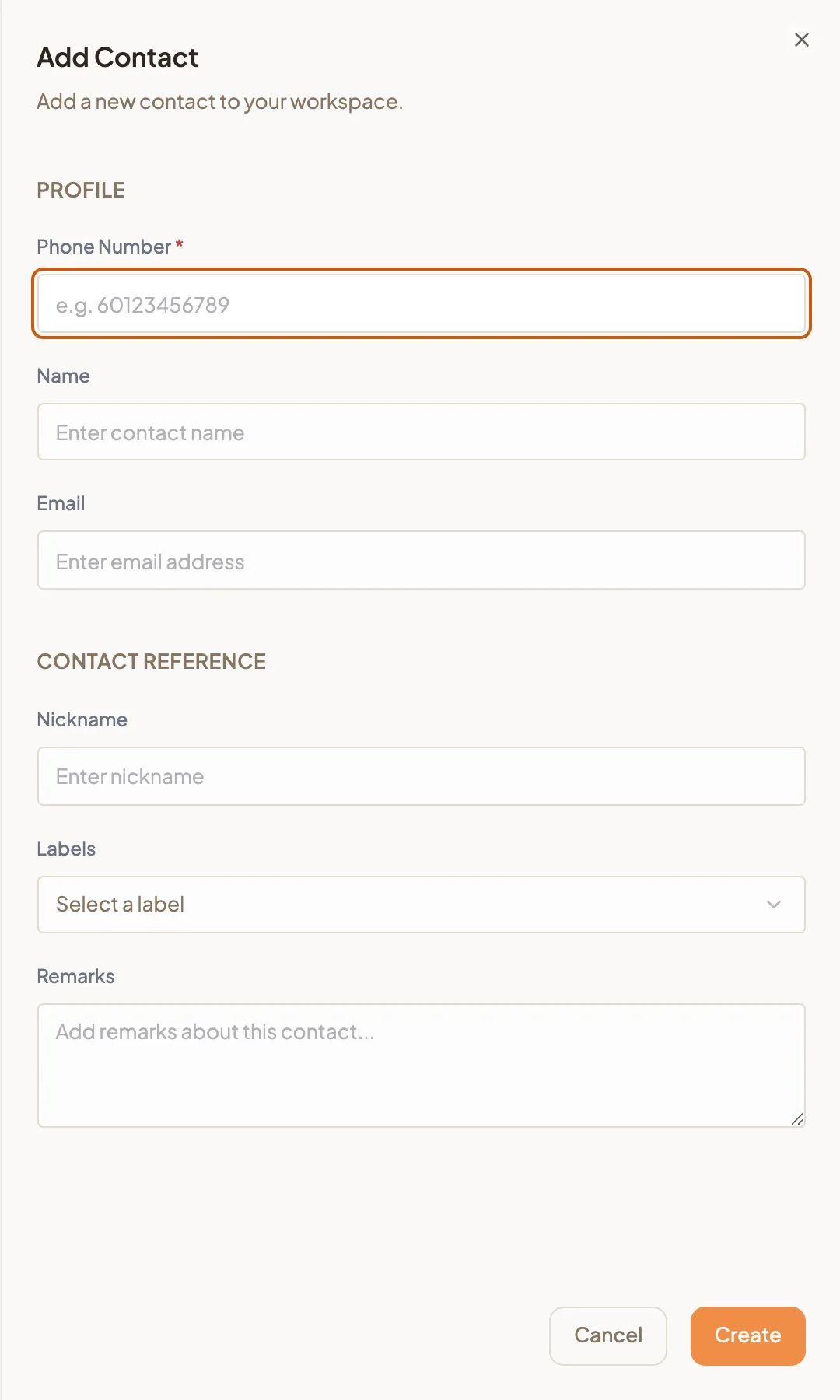
If the number is already saved, you see A contact with this phone number already exists. Search for it instead. If the number is not recognised, check that it starts with the country code, 60 for Malaysia.
To add hundreds at once from a spreadsheet, use Import Contacts.
Edit a contact
- Select the contact's name, or select the menu (⋮) at the end of the row and choose Edit Contact.
- Contact Details opens. Change the Nickname, Labels or Remark.
- Select Save.
The name, phone number, email and other profile details are shown there but cannot be changed. What each field means, and the AI Contact Persona underneath, is covered in Contact Details.
Label many contacts at once
- Tick the box at the start of each row you want, or the box in the heading to select the whole page.
- Select Assign Labels or Remove Labels in the bar that appears.
- Pick the labels, then confirm. To create or recolour labels, see Labels.
When you choose Remove Labels, you only see labels that at least one selected contact has. Contacts without that label are left as they are.
Export your contacts
- Search and filter the list down to the contacts you want. The export includes exactly what you are looking at.
- Select Export.
- A CSV file downloads to your computer. You see Contacts exported successfully when it is done.
Filter by the Catering label, export, and your events team has a call list before lunch.