
Import contacts from a CSV file
Quick answer
Go to Contacts, select Import, then upload a CSV file of up to 10 MB or paste the data in. Match each column to a contact field, add labels, choose whether to update existing contacts, and select Start Import.
Your loyalty cards have been living in an Excel file on the cashier's laptop for three years: 1,400 names, phone numbers typed four different ways, and a column that says "VIP?" with a Y in some rows. You want all of them in HeyBirdy before the Deepavali promotion goes out next week.
Import Contacts brings a whole customer list into HeyBirdy in one go from a CSV file. It reads your columns, checks every phone number before anything is saved, and labels everyone you bring in, so the loyalty list from that laptop is ready to message by the afternoon.
With Import Contacts you can:
- Upload a CSV file, or paste the rows in straight from a spreadsheet.
- Match your column names to HeyBirdy's fields, even if they are in Malay.
- See which rows are fine, which are duplicates and which will be skipped, before you import.
- Put a label such as Loyalty 2026 on every contact in the file.
- Update customers you already have, instead of creating them twice.
Before you start
- Your WhatsApp Business account is connected.
- Your file is a .csv file of up to 10 MB, with up to 20,000 contacts.
- The people on your list have agreed to hear from you on WhatsApp. See What does WhatsApp opt-in consent mean?
Prepare your CSV file
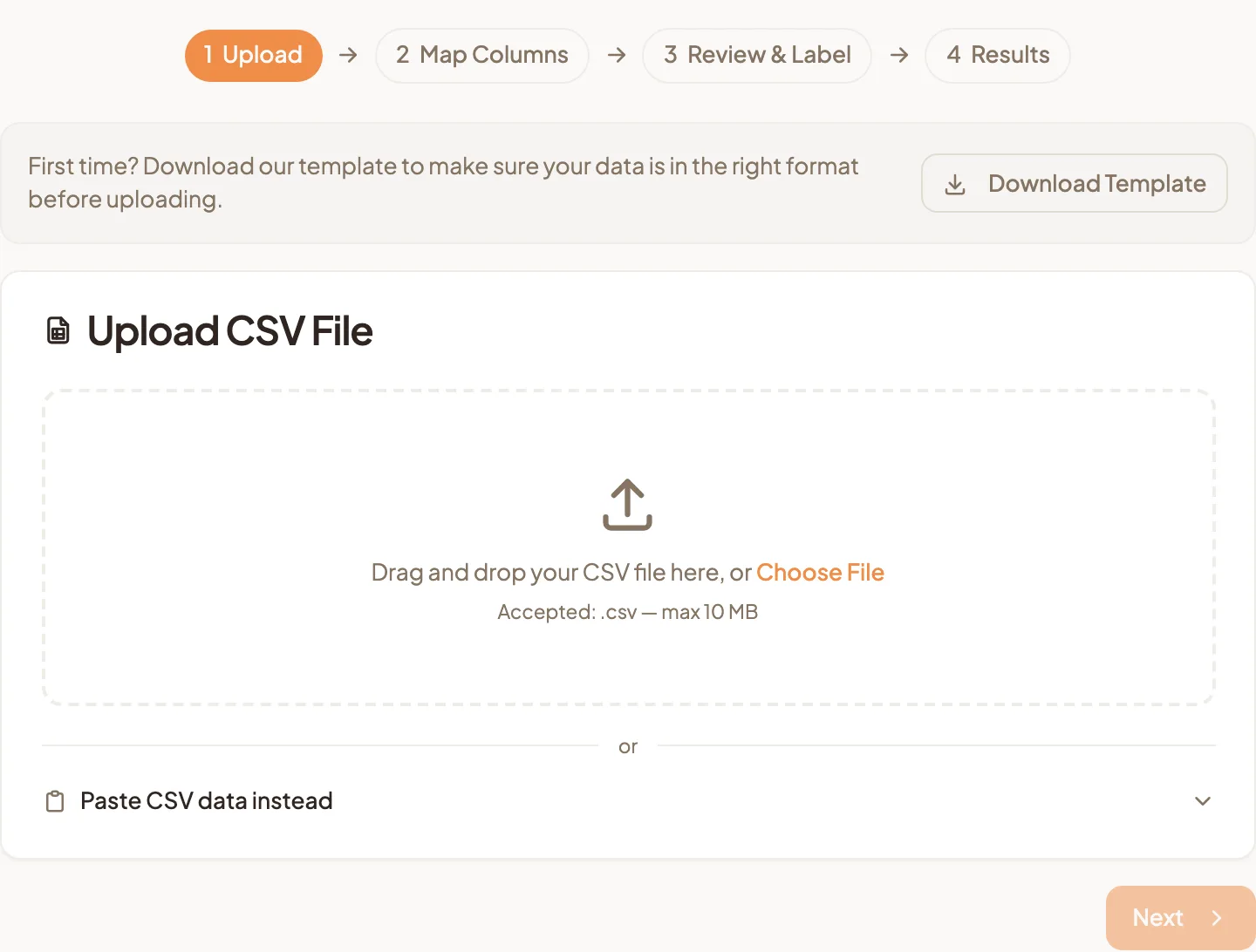
The fastest start is the template. On the Upload step, select Download Template. It has the columns Name, Phone Number, Email, Nickname and Remarks, with two sample rows.
A few things make the import go smoothly:
- Phone numbers with the country code. Write Malaysian numbers as 60123456789. A plus sign, spaces and dashes are fine. A number needs 7 to 15 digits.
- Local numbers are fine too. A number such as 012-345 6789 is read using the Default Country Code you choose later, which starts as Malaysia (+60).
- One contact per row, with a header row at the top. If your first row is already a phone number, HeyBirdy treats the file as having no headers and names the columns for you.
- Labels in one column, separated by commas, semicolons or a vertical bar, such as
VIP, Deepavali. Labels that do not exist yet are created for you.
Step 1: Upload
- Go to Contacts, then All Contacts, and select Import.
- Under Upload CSV File, drag your file into the box or select Choose File.
- If you would rather paste, select Paste CSV data instead and paste your rows, header row included.
- Select Next.
Step 2: Map Columns
HeyBirdy reads your column names and suggests a field for each one. It recognises common names in English and Malay, such as Mobile, No HP, Nama and Catatan.
- Check the field next to each of your columns: Phone Number, Name, Email, Nickname, Remarks or Labels.
- For a column you do not want, such as that "VIP?" column, choose the skip option.
- Look at the preview. The coloured counts show how many rows are valid, how many share a phone number with another row, and how many will be skipped.
- Select Issues only to see only the rows with problems, or All rows to see everything.
- Select Next.
A column must be mapped to Phone Number before you can go on. That is the one field every contact needs.
Rows with a problem are marked duplicate phone or will skip. If you fix them in your spreadsheet and upload again, they come in with everyone else.
Step 3: Review & Label
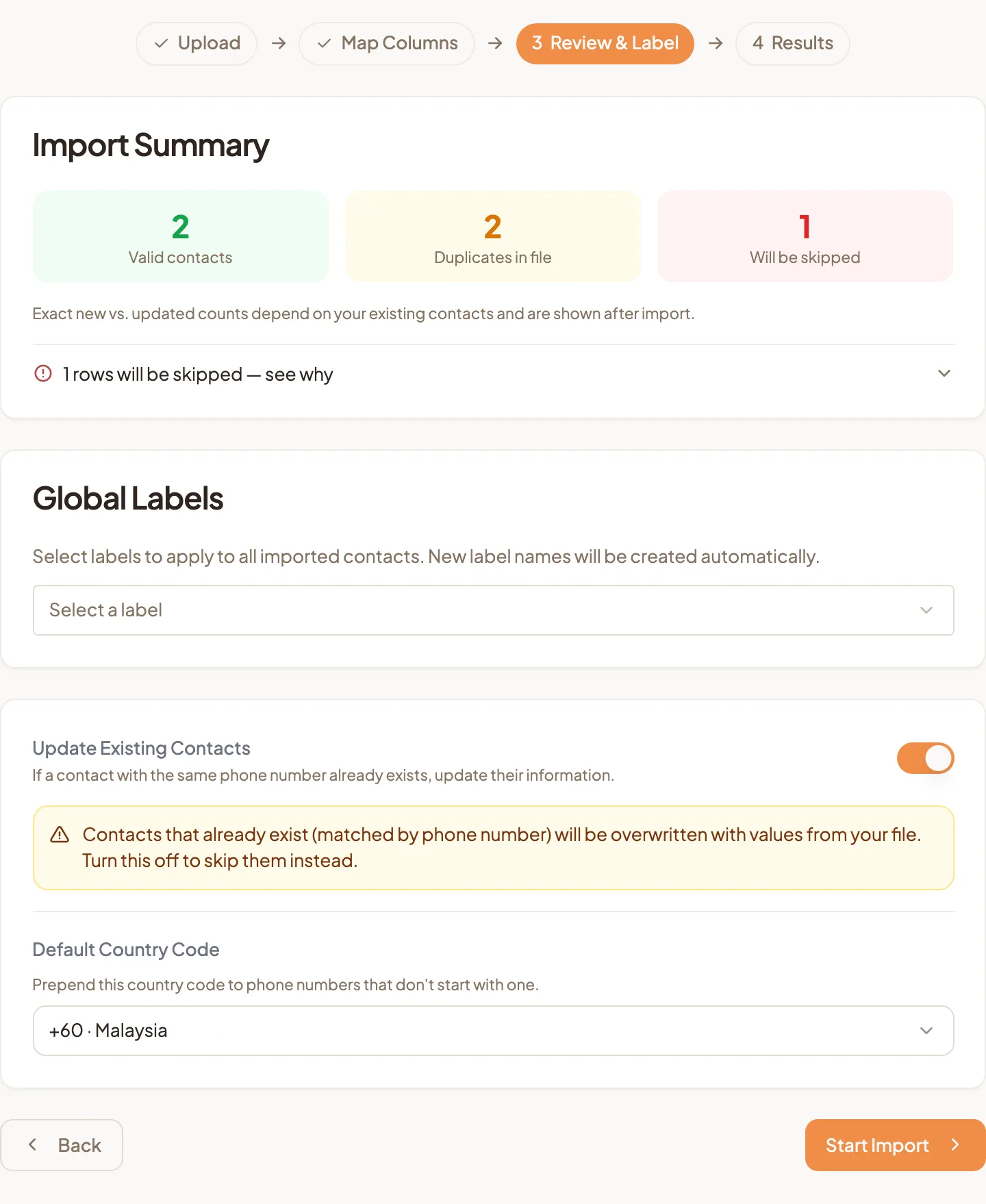
- Read the Import Summary: Valid contacts, Duplicates in file and Will be skipped.
- If rows will be skipped, open the list under the summary to see which ones and why:
- Missing phone number: the phone cell is empty.
- Phone too short: the number has 6 digits or fewer.
- Invalid phone format: the number has more than 15 digits, or characters a phone number cannot contain.
- Under Global Labels, pick the labels every imported contact should get, or type a new name to create one.
- Leave Update Existing Contacts on to refresh customers you already have, or turn it off to leave them as they are. With it off, rows for existing customers are counted as skipped.
- Check the Default Country Code. It is added to numbers that do not start with one.
- Select Start Import.
When two rows in the file share a phone number, HeyBirdy keeps the first and skips the rest, so nobody is created twice.
Step 4: Results
When the import finishes, Import Complete shows how many contacts were Created, Updated and Skipped, and how many rows had Errors.
- Open Error Details to see each row that did not come in, with its row number and phone number.
- Select Go to Contacts to see your new contacts, or Import Another to start over with a new file.
Sometimes HeyBirdy takes you back to All Contacts while it finishes, with a banner showing how many contacts are being imported. You can carry on with other things. When it is done, the list refreshes and a message tells you how many contacts were created and updated.
Filter All Contacts by the label you added, and there is your loyalty list, ready for the Deepavali campaign.