
Unanswered Questions
Quick answer
Go to AI Management, then Unanswered Questions, and open the row menu on a question in Needs Review. Choose Add to Instant Answers to write the answer your AI assistant should give, or Dismiss to skip it.

Somebody asked whether you take American Express. Then somebody else did, a week later. Your team answered both times, and the answer still lives nowhere except in their heads.
Every question your assistant could not answer is written down for you, in Unanswered Questions. Each one is a gap you can close in about a minute.
This article shows you how to work through that list and turn the questions worth answering into answers your assistant gives on its own.
Before you start
- You are signed in as an Admin or a Support Agent. Both can work through Unanswered Questions.
- Your assistant has handled some conversations. The list fills from real customer questions, so a brand new account starts empty.
See what your assistant could not answer
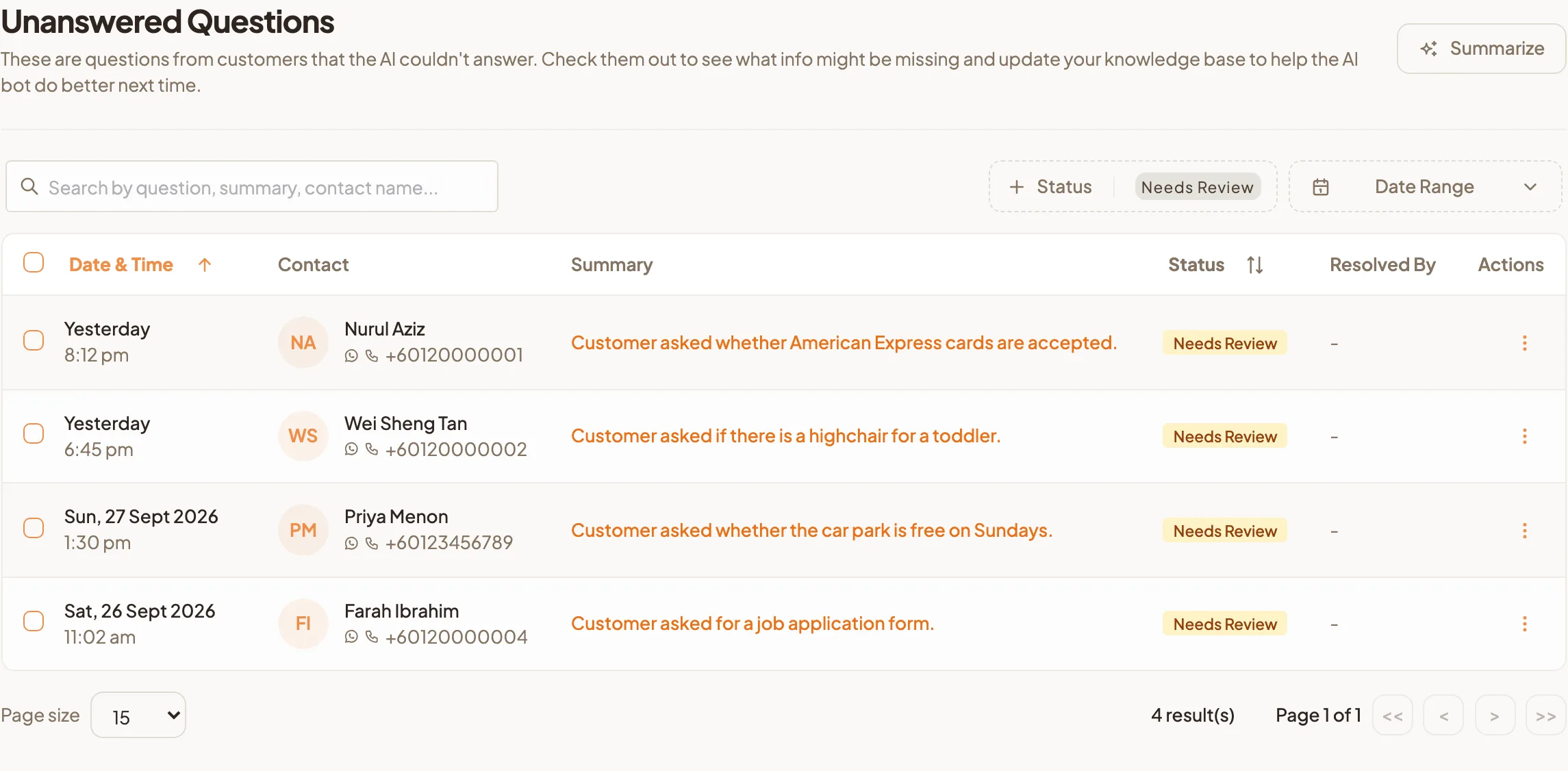
- Go to AI Management, then Unanswered Questions.
- The list opens on Needs Review, which is everything waiting on you.
- Search by question, summary or contact name, or narrow the list with Date Range.
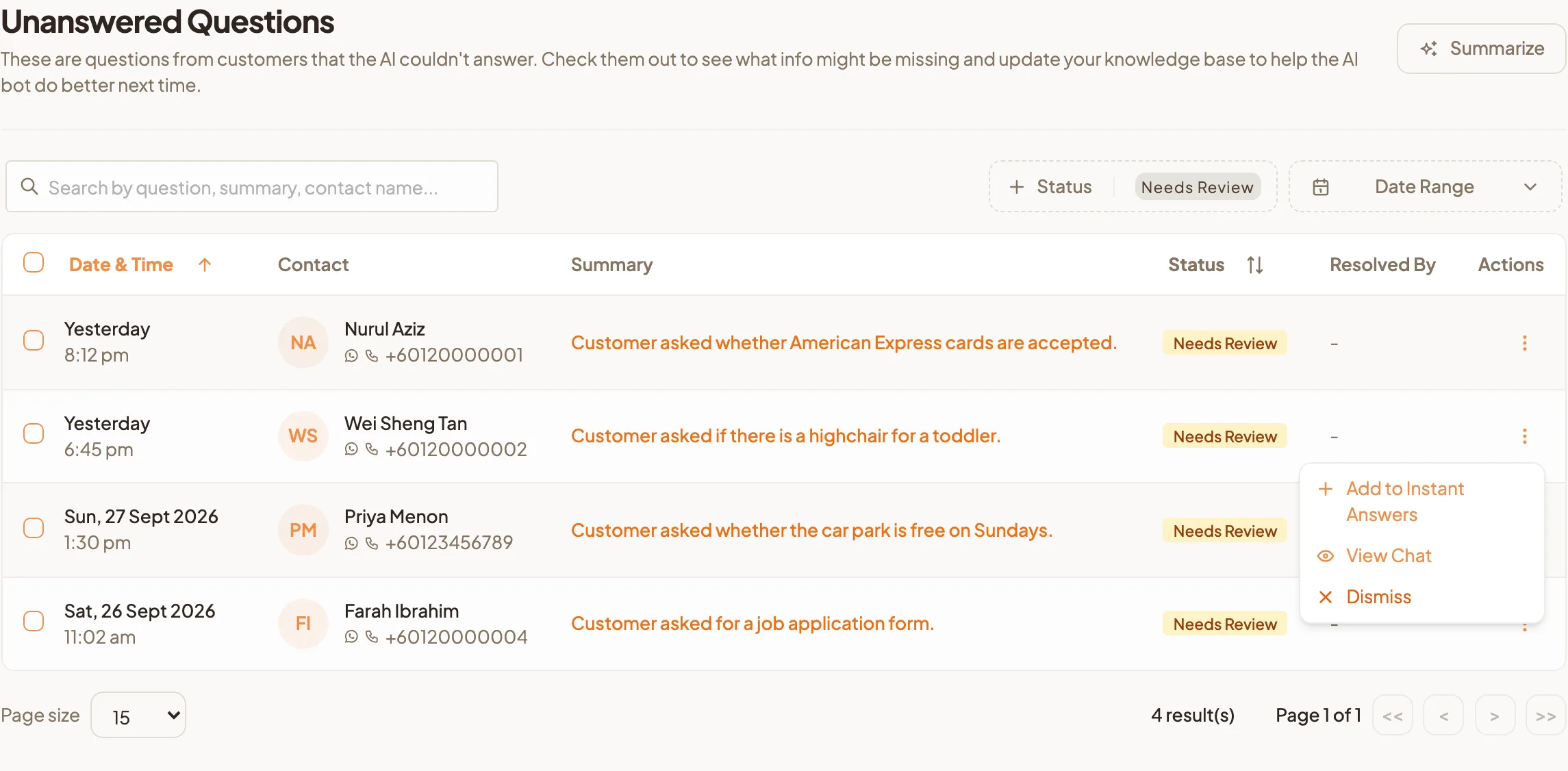
- To read the conversation a question came from, choose View Chat from the menu at the end of the row. The chat opens in a new tab at that message.
Reading the original conversation is worth the extra few seconds. The customer's own wording tells you what they were actually asking, which is not always what the summary suggests.
Turn a question into an answer
- Open the menu at the end of the row and select Add to Instant Answers.
- The Create New Instant Answer form opens with the customer's question already filled in.
- Choose a Section so the answer sits with related ones.
- Edit the Question into the way most people would ask it, then write the Answer.
- Select Create. The row moves through Adding to Instant Answer and settles on Added to Q&A.
Skip the ones not worth answering
Not every question deserves an answer. One-off requests, wrong numbers and questions only a person can handle are all fine to clear away.
- Choose Dismiss from the row menu, then confirm.
- The question shows as Skipped and leaves your review list.
To clear several at once, tick them in the list and select Dismiss Selected.
Make it a weekly habit
Ten minutes a week is enough. Work down the list, answer the questions you have seen more than once, skip the rest.
The list is the only honest account of what your customers ask and your assistant cannot yet handle. As you work it, the questions stop coming back, your team answers fewer of them by hand, and a quiet week on this page means your assistant is genuinely covering the ground.