
Set your AI assistant's tone and response rules
Quick answer
Go to AI Management, then AI Assistant Settings. Use Tone and Manner to describe how your assistant should sound, and Response Policy to choose what it must never say, then test the result in the AI Assistant Playground.
A regular asks whether the kopi is still RM3.50, and your assistant replies like a bank. Later someone asks for a discount on a birthday cake, and it cheerfully says it will see what it can do. Neither sounds like your shop, and the second one is a promise you never made.
AI Assistant Settings is where you decide how your assistant sounds and what it must stay away from. The answers themselves still come from Instant Answers and the Knowledge Hub. These settings shape the voice and the boundaries around them.
With it you can:
- Describe your assistant's personality in your own words, from warm and chatty to short and formal.
- Go back to HeyBirdy's default personality at any time.
- Tick off behaviours you never want, such as promising discounts or mentioning competitors.
- Add house rules of your own in plain language.
- Try your changes in the playground before customers see them.
Before you start
- You are signed in as an Admin. Support Agents do not see AI Assistant Settings.
- Your WhatsApp Business account is connected and your AI assistant is set up. Until both are ready, Tone and Manner shows sample settings.
Set your assistant's tone of voice
- Go to AI Management, then AI Assistant Settings.
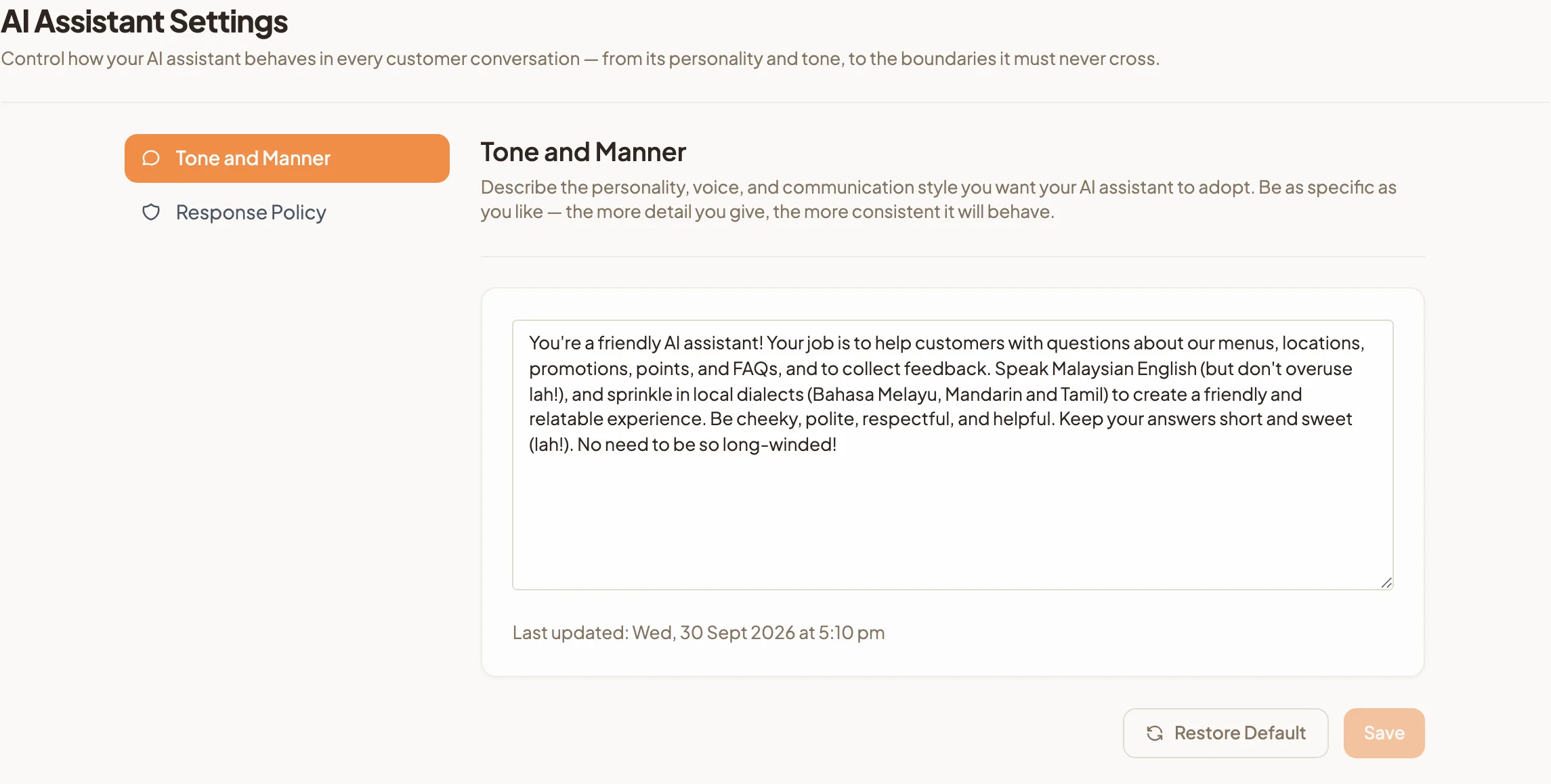
- Open Tone and Manner.
- In the text box, describe the personality, voice and style you want. The more specific you are, the more consistent your assistant is. For example: "Friendly and casual, like a regular's favourite waiter. Short replies. Mix in a little Malay the way our customers do. Never pushy."
- Select Save.
The date under the text box shows when the tone was last updated. Once it is saved, your assistant answers in that voice, whether it is 2pm on a weekday or midnight on a public holiday.
Go back to the default tone
- Select Restore Default. The text box fills with HeyBirdy's default personality.
- Select Save to apply it.
Nothing changes for customers until you save, so you can restore the default to compare it with your own and then change your mind.
Stop your assistant from saying certain things
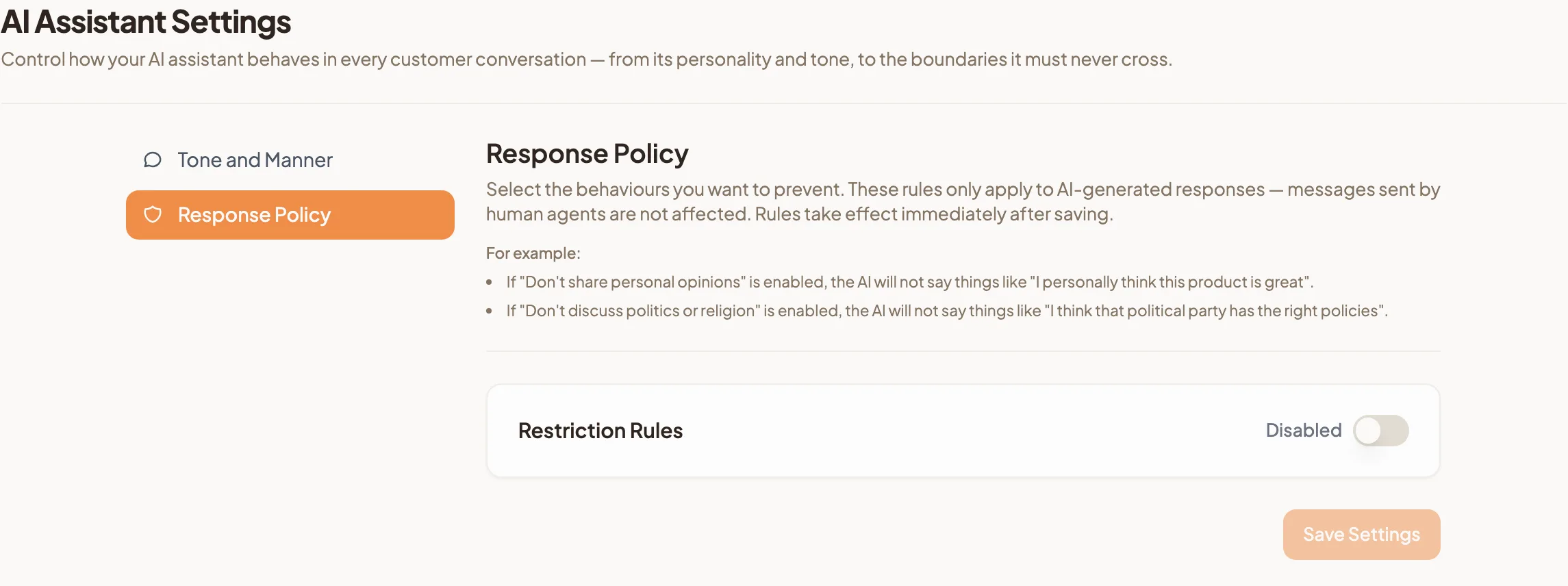
Response Policy sets the lines your assistant must not cross. The rules apply only to replies written by your AI assistant. Messages your team sends are never affected.
- Go to AI Management, then AI Assistant Settings, and open Response Policy.
- Switch on Restriction Rules.
- Tick each behaviour you want to prevent. The options include Don't offer or promise discounts, Don't mention competitors, Don't promise pricing or availability, Don't give medical, legal, or financial advice and Don't use emojis.
- Under Additional rules, describe anything else in plain language, for example "Don't suggest third-party delivery apps."
- Select Generate Instructions. HeyBirdy turns your choices into Enforcement Instructions and shows them below.
- Read the instructions, then select Save Settings.
The rules take effect as soon as you save. Every reply your assistant writes is checked against them before it reaches your customer, so the birthday cake discount stays a conversation for your team.
If HeyBirdy finds conflicting rules
When two of your rules pull in opposite directions, HeyBirdy shows Conflicting rules detected above the instructions, with a short explanation. Change or remove one of the rules, select Generate Instructions again, and check the warning has gone before you save.
Undo changes you have not saved
Select Discard Changes to go back to the rules you last saved.
Test your assistant in the playground
The AI Assistant Playground lets you ask your assistant questions yourself, without a customer waiting on the other end. It answers using your tone settings, your Knowledge Hub and your Instant Answers.
- Open any page under AI Management.
- On a wide screen, the playground sits on the right of the page. On a smaller screen, select the round robot button in the bottom corner to open it.
- Type a question the way a customer would, for example "Are you open on Hari Raya?", and send it.
After you save a change to your tone, the playground shows Updating AI Assistant for a moment, then the time it was last updated. Ask the same question again to hear the difference.
The playground is a test space and does not reflect every part of a live chat. Treat it as a quick check of what your assistant knows and how it sounds.
If the playground shows a notice instead of a chat
- OpenAI Not Set Up: your AI assistant is not ready yet. Contact the HeyBirdy team through Something's Wrong? in the sidebar to finish setup.
- OpenAI Budget Depleted: your assistant has used up its AI budget. Live chats are affected as well as the playground. Contact the HeyBirdy team through Something's Wrong? to top it up.
If your assistant is set up but not replying to customers, work through AI assistant not answering.