
Instant Answers
Quick answer
Go to AI Management, then Instant Answers, add a section, and add each question with the answer you want given. Your AI assistant only uses answers in a published section, so select Publish when the section is ready.

It is 9.40pm, you are cashing up, and someone asks whether you are still open. Again.
Instant Answers takes the questions your team answers twenty times a day and hands them to your AI assistant, so that message gets a proper reply before you have even seen it. Your team keeps the conversations that actually need a person.
The AI works out what a customer means rather than matching exact words, and answers in whatever language they wrote in. For longer material such as a full menu or a policy document, use the Knowledge Hub instead.
Before you start
- Your AI assistant is ready. Instant Answers stays locked until it is.
- Have a few real customer questions to hand. The ones your team answers every day are the best place to start.
Add your first Instant Answer
- Go to AI Management, then Instant Answers.
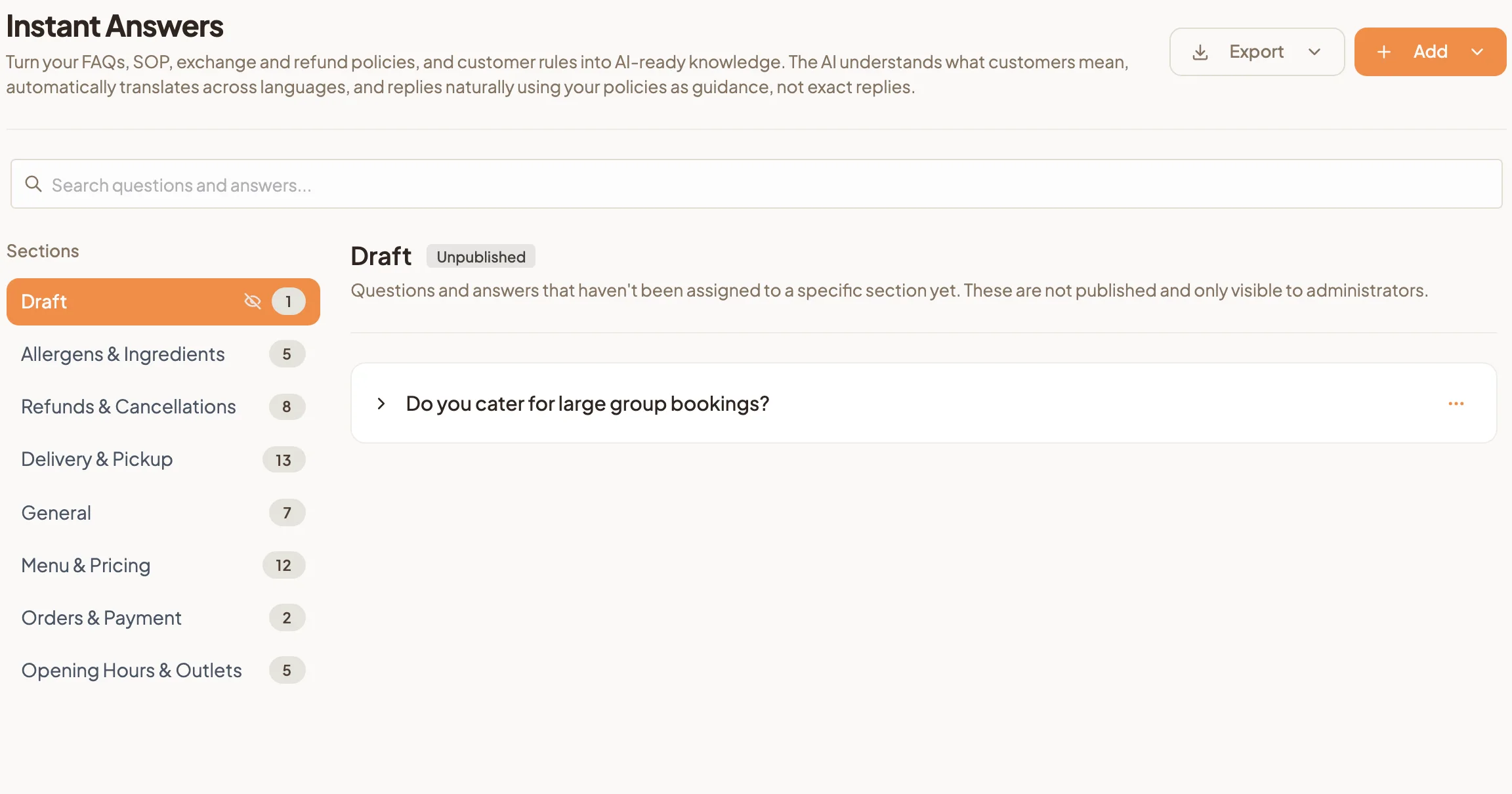
- Select Add, then New Section, and name it after a topic, for example Opening Hours & Outlets. Sections keep related answers together and are the unit you publish.
- Select Add, then New Question.
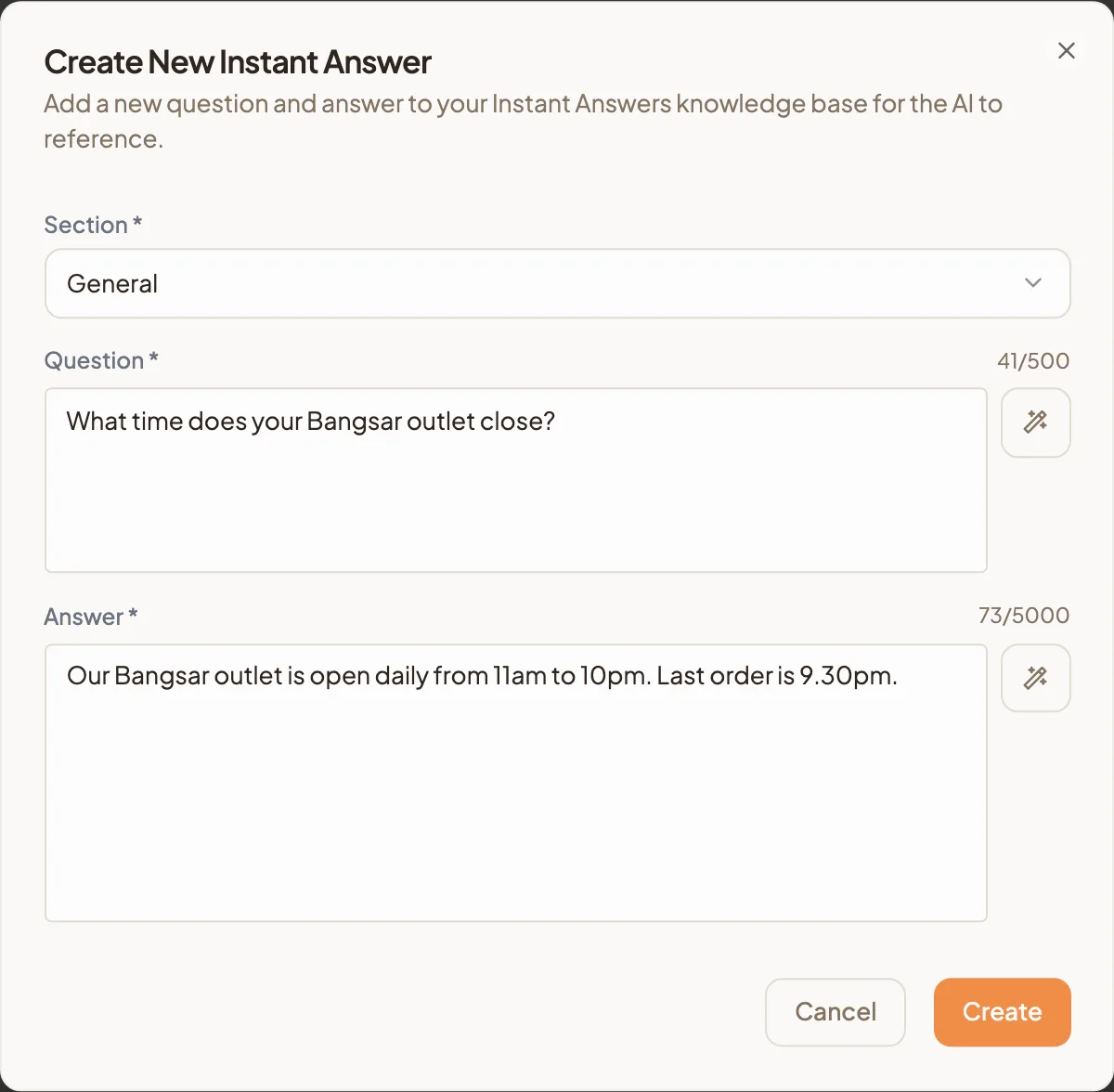
- Choose the Section, write the Question the way a customer would ask it, then write the Answer.
- Select Create.
Publish a section so the AI can use it
Writing an answer is not enough on its own. Your AI assistant only uses answers in a section you have published.
- Select the section in the Sections list.
- Select Publish.
- Confirm. The section shows Publishing… for a moment, then goes live.
To take a section back out of service, select Unpublish. Customers stop receiving answers from it straight away, and nothing you wrote is lost.
That is it. Every customer who asks now gets your answer, at 3pm or 3am, in whatever language they typed it in. To check first, ask the question in the AI Assistant Playground beside the page.
Keep improving your answers
Open AI Management, then Unanswered Questions, to see what customers asked that the AI could not answer. Each one is a gap you can close: select Add to Instant Answers to turn it into a new answer, or Dismiss if it is not worth covering.
Ten minutes a week, and your bot quietly gets better at your business. It stops guessing what your customers want to know and starts learning it.