
Download chat alert, satisfaction and agent reports
Quick answer
Go to Reports, pick a tab, choose a date range and filters, then select Generate. HeyBirdy prepares an Excel file in the background, downloads it for you when it is ready, and keeps a copy in Report History.
It is the end of the month and your operations manager wants to know how quickly the team picked up handovers, and who closed the most chats on the weekend shift. You want a spreadsheet you can send, not a screenshot of a chart.
Reports turns your chat data into Excel files you can keep, filter and share. Pick the report, pick the dates, and HeyBirdy builds the file while you get on with something else.
With it you can:
- See how fast your team responded to chats your AI assistant passed to them.
- Compare customer satisfaction for chats your AI assistant handled alone against chats your team joined.
- Check each team member's activity, chats resolved and response times during their shifts.
- Download any earlier report again from Report History.
Before you start
- You are signed in as an Admin. Support Agents do not see Reports.
- Check your workspace time zone. The box at the top of the page shows it. All data on the page and in every report follows this time zone, not your computer's clock. To change it, see Workspace Settings.
- Your WhatsApp Business account and AI assistant are connected. Until they are, reports use sample data.
Choose a report
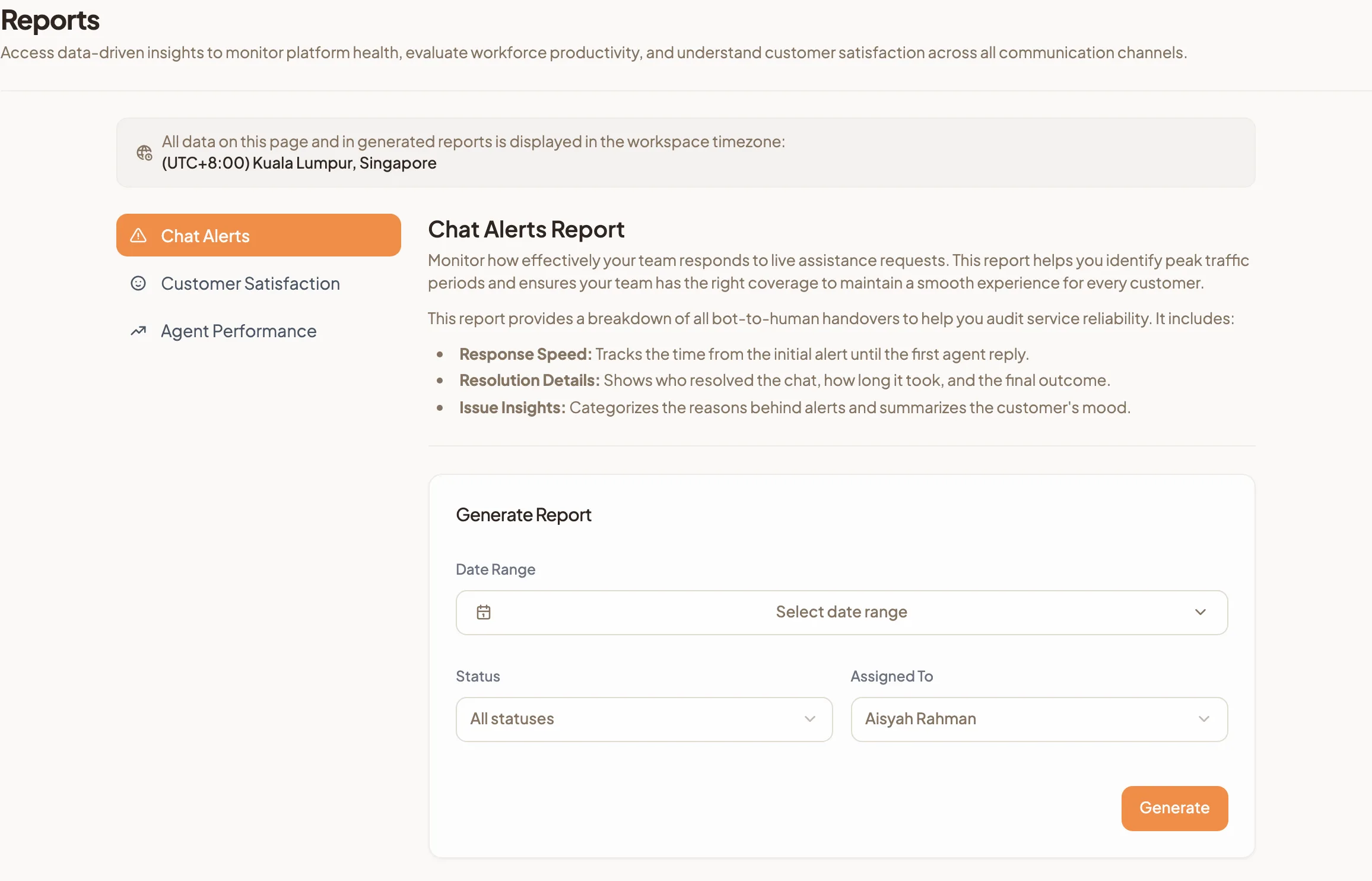
Go to Reports in the sidebar and pick a tab.
| Tab | What it covers | Filters |
|---|---|---|
| Chat Alerts | Every handover from your AI assistant to your team: time to first reply, who resolved it and how long it took, the outcome, the reason for the alert and the customer's mood. | Date Range, Status, Assigned To |
| Customer Satisfaction | An AI-generated satisfaction score for each chat, AI-only chats compared with chats your team handled, and a summary of highlights. | Date Range, Agent Involved, AI Assistant Only |
| Agent Performance | For each team member: first and last activity during their scheduled shifts, chats involved compared with chats resolved, and average response time. | Date Range, Agent |
Generate a report
- Open the tab for the report you want.
- Under Generate Report, choose a Date Range. You cannot pick a date later than today in your workspace time zone.
- Set the filters for that tab:
- Chat Alerts: under Status, choose from Pending, Resolved, Unresolved and Inconclusive. Under Assigned To, choose team members. Both start on all.
- Customer Satisfaction: choose team members under Agent Involved, or switch on AI Assistant Only to report only on chats your assistant handled alone.
- Agent Performance: choose team members under Agent.
- Select Generate. The button reads Processing... while HeyBirdy takes your request.
HeyBirdy prepares the report in the background, and the new row appears at the top of Report History. When it is ready, the Excel file downloads on its own, as long as you are still on the page. You do not need to watch it. If you leave, the report waits for you in Report History.
Find and download earlier reports
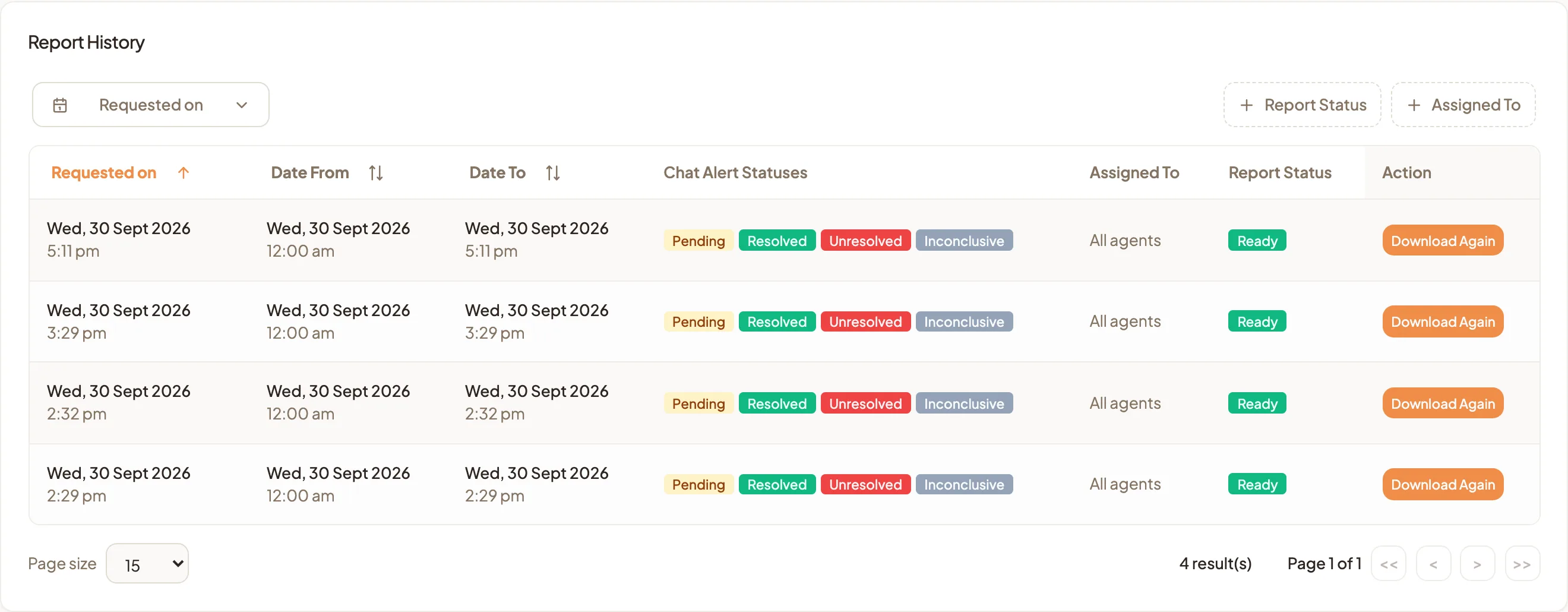
Every report you generate stays in Report History, below the filters on each tab.
- Narrow the list with Requested on, Report Status or the team member filter if you need to.
- Check the status column:
- Pending: waiting to start.
- Processing: being built.
- Ready: finished.
- Failed: something went wrong while building it.
- For a Ready report, select Download Again to download the file.
- For a Failed report, select Generate Again to try again with the same dates and filters.
The table also shows each report's File name, Date From and Date To, and the filters it used, so you can tell two reports for the same month apart.
With a report ready each month, the conversation with your manager starts from the numbers, and the weekend shift gets the credit it earned.